Finding and Sending Log Files
How to locate and send log files when contacting support.
2 min read
When contacting support about crashes or bugs, log files help our team diagnose issues quickly. Here’s how to find and send them.
What are log files?
Log files are automatic records of what the software was doing, especially during crashes or unexpected events. They give our developers behind-the-scenes information to identify and fix problems.
Log file locations
macOS
~/Library/Application Support/Epilogue/Playback/crashesTo access this folder:
- Open Finder
- Press Cmd + Shift + G
- Paste the path above
- Press Enter
Windows
C:\Users\<YOUR_USERNAME>\AppData\Local\Epilogue\Playback\crashesTo access this folder:
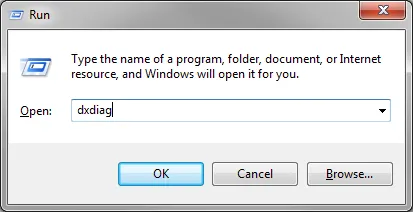
- Press Win + R
- Type
%localappdata%\Epilogue\Playback\crashes - Press Enter
Linux
Check these locations (varies by distribution):
~/.local/share/Epilogue/Playback/crashes
/usr/local/share/Epilogue/Playback/crashes
/usr/share/Epilogue/Playback/crashes
Finding the log file
Look for a file named runtime.txt in the crashes folder. This contains the most recent log data.
Sending the log file
Open an email to support@epilogue.co
Briefly describe the issue:
- What you were doing when the problem occurred
- Whether it happens consistently or randomly
- Any specific actions that trigger the issue
Attach the runtime.txt file
Include your operating system and version
Send the email
What happens next
Our team will analyze the log file to understand what went wrong. We may follow up with additional questions or provide a fix in a future update.
Tips
- Send logs as soon as possible after a crash — newer logs overwrite older ones
- The more details you provide about reproducing the issue, the faster we can help
- If you have multiple crashes, the log file contains the most recent one
Still need help? Contact our support team

