LED Not Powering On
Troubleshoot when your Operator's LED doesn't light up.
2 min read
If your Operator’s LED doesn’t light up when connected, the device isn’t receiving power. Here’s how to troubleshoot.
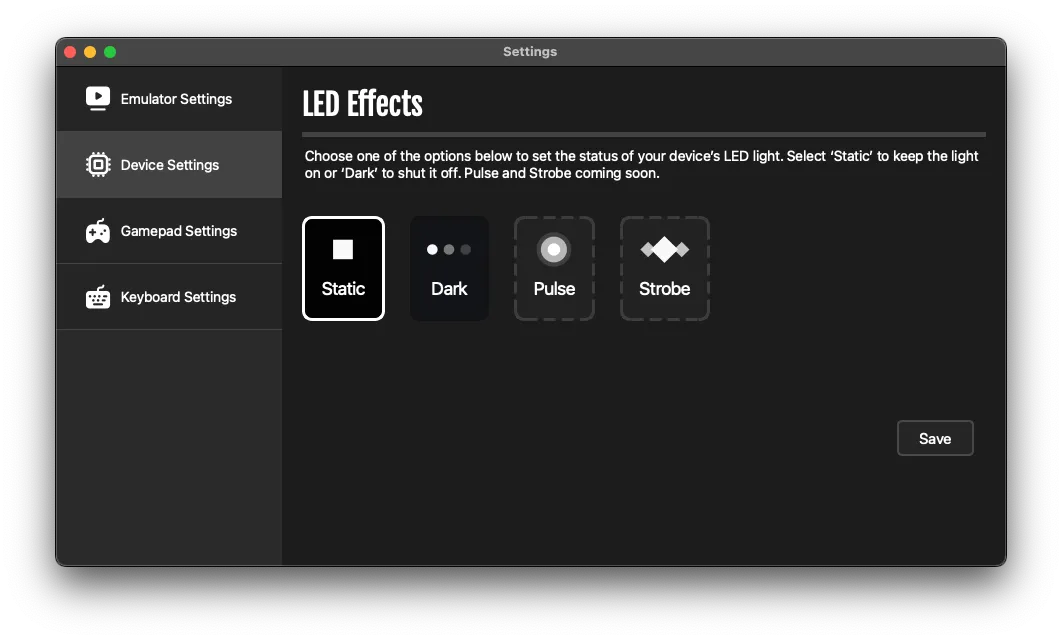
Check if Playback detects the device
Even without the LED, Playback might still detect your Operator:
- Launch Playback
- Go to Settings (click the Playback logo)
- Open Device
- Look for the Static button — click it to activate the LED
If the device is detected but the LED doesn’t respond, the LED itself may be faulty.
If Playback doesn’t detect the device
The device isn’t receiving power. Try these steps:
1. Use a different USB cable
The cable may be faulty. Try:
- The included USB cable
- Another known-good USB-C cable
- A cable that supports data transfer (not charge-only)
2. Try different USB ports
Some ports may not provide adequate power:
- Try all available USB ports on your computer
- Test both USB-A and USB-C ports if available
- Avoid ports on the front of desktop cases (they may have power issues)
3. Connect directly
Remove any intermediary devices:
- Don’t use USB hubs
- Don’t use USB adapters
- Connect directly to your computer’s built-in USB ports
4. Test on another computer
Try connecting the Operator to a different computer to determine if the issue is with your computer’s USB ports or the device itself.
If nothing works
If the LED still doesn’t power on after trying all these steps, the device may be defective. When filing a warranty claim, include:
- Steps you’ve tried
- Your computer model and OS
- Whether the device ever worked previously
Think your device may be defective? File a warranty claim

