Integrity Check Failed
Troubleshoot the "Integrity check failed" error message.
2 min read
The “Integrity check failed” message indicates that data from your cartridge isn’t being read correctly. Here’s how to resolve it.
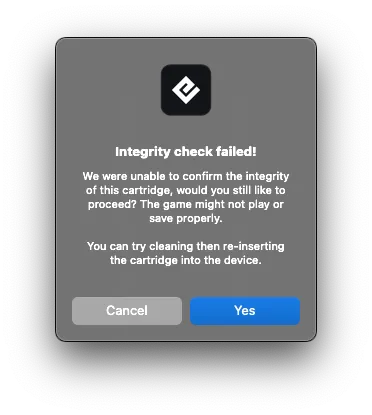
What this error means
Your Operator performs extensive integrity checks to ensure accurate data reading for reliable gameplay. This error means something is interfering with the connection between your cartridge and the device.
Step 1: Clean the cartridge pins
This is the most common fix for official games. Clean the pins with 99% isopropyl alcohol and a cotton swab, let dry completely, then try again.
See Cleaning Cartridge Contacts for detailed instructions.
Step 2: Check cartridge insertion
Make sure:
- The cartridge is fully inserted
- It fits snugly (not loose or requiring force)
- It’s properly aligned in the slot
Step 3: Inspect the cartridge
If comfortable, open the cartridge and check:
- The PCB for visible damage
- Pin condition (corrosion, wear)
- Any loose components
Step 4: Consider cartridge type
Official games
Clean pins usually resolve the issue. If not, the cartridge may have severely corroded pins or internal damage.
Unofficial/reproduction games
Reproduction cartridges often fail integrity checks because:
- Their architecture differs from originals
- Components degrade faster
- The game data may be corrupt or irregular
Step 5: Test multiple games
Try several cartridges from your collection:
- Multiple games fail: May indicate a device issue — contact support
- Only one game fails: The issue is with that specific cartridge
Important note
Original consoles don’t perform these integrity checks, so a game might work on original hardware but fail on your Operator due to underlying data issues.
If multiple games fail
If several official games show this error after following these steps, the device itself may have an issue.
Think your device may be defective? File a warranty claim

