Failed to Load Game
Troubleshoot the "Failed to load game" error.
2 min read
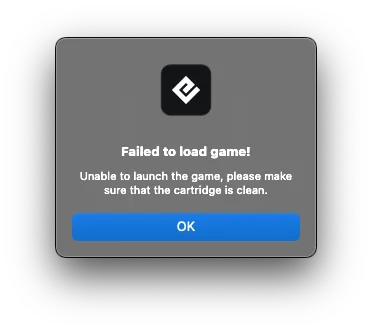
The “Failed to load game” message appears when cartridge data is too corrupted to be read. This is more severe than an integrity check failure.
Troubleshooting steps
1. Clean the cartridge pins
Proper contact is essential. Clean the pins with 99% isopropyl alcohol and a cotton swab, then let dry completely before retrying.
See Cleaning Cartridge Contacts for detailed instructions.
2. Check cartridge insertion
Make sure:
- The cartridge is properly seated in the slot
- It’s not loose or tilted
- It doesn’t require excessive force to insert
3. Inspect the cartridge (if possible)
Open the cartridge and look for:
- Visible damage to the PCB
- Corroded or worn pins
- Loose or damaged components
4. Consider cartridge authenticity
Reproduction cartridges are more prone to this error because:
- They often use lower-quality components
- Data corruption is more common
- Internal architecture may be non-standard
Test with official cartridges to confirm whether the issue is cartridge-specific.
5. Use the default core
If you’re using a custom emulator core, try switching back to the officially recommended cores:
- GB Operator: mGBA
- SN Operator: bsnes
Custom cores may have compatibility issues that cause games to fail loading. You can change the core in Settings > Emulator.
6. Test multiple games
- One game fails: The cartridge is likely damaged
- Multiple games fail: There may be a device issue — contact support
Why this happens
Some cartridges may work on original hardware but fail on your Operator. Original consoles don’t perform the same rigorous data verification that the Operator does.
Getting help
If multiple official games show this error after cleaning, contact us with details about which games are affected.
Still need help? Contact our support team

