Device Not Recognized
Troubleshoot when your computer doesn't detect the Operator device.
2 min read
If your computer isn’t recognizing your Operator device, follow these steps to diagnose and resolve the issue.
Check the LED
First, look at your Operator’s LED:
- LED is on (any color) — The device has power. The issue is likely software-related.
- LED is off — The device isn’t receiving power. See LED Not Powering On.
- LED rapidly flashing white — There’s a USB communication issue. See LED Flashing White.
Basic troubleshooting
1. Try a different USB cable
The included cable is tested to work. If using a different cable, try the original or another high-quality USB-C cable.
2. Try different USB ports
Some USB ports may not provide adequate power or have compatibility issues. Test multiple ports on your computer.
3. Connect directly to your computer
Avoid USB hubs, adapters, and docking stations. Connect the Operator directly to a USB port on your computer.
4. Restart Playback
Close the Playback app completely and relaunch it. Sometimes a fresh start resolves detection issues.
5. Restart your computer
A reboot can clear USB driver issues and reset the connection.
Platform-specific steps
Windows®
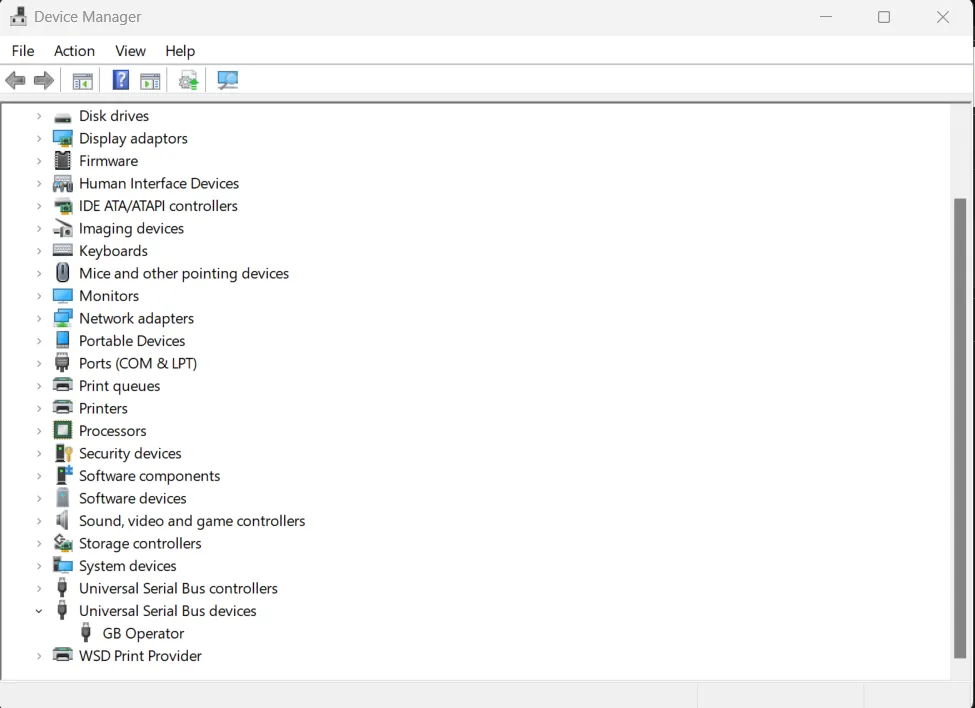
- Open Device Manager
- Look for unknown devices or devices with warning icons
- Try updating USB drivers
- Check for Windows updates
macOS
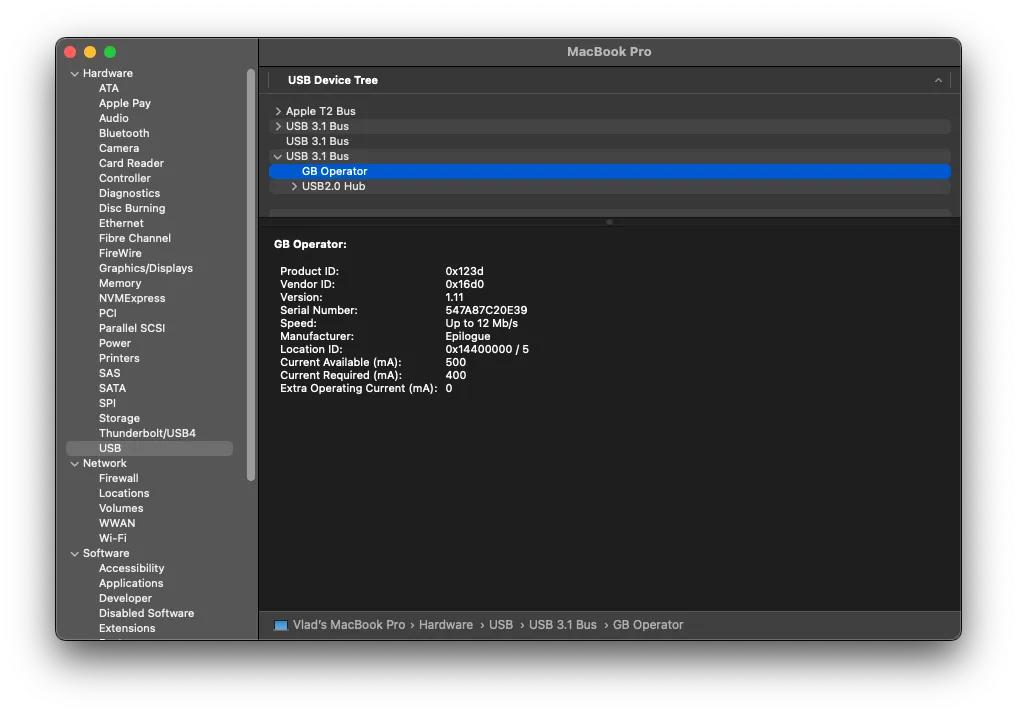
System Preferences may show the device under USB in System Information. Try resetting the SMC if USB issues persist.
Linux
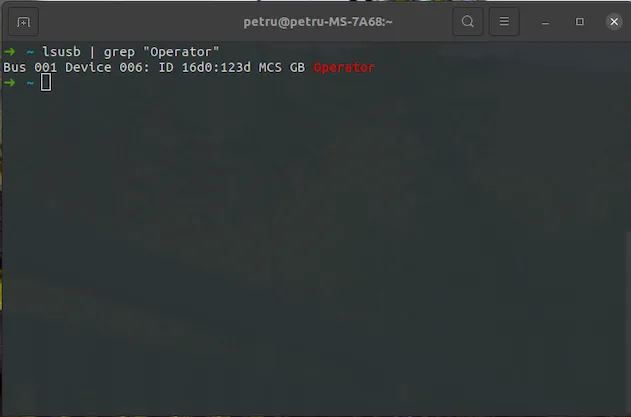
Make sure you’ve set up udev rules. See Linux Setup for instructions.
Test on another computer
If possible, try your Operator on a different computer. This helps determine if the issue is with the device or your computer’s USB configuration.
Still not working?
If you’ve tried all the above steps, contact us with:
- Your operating system and version
- Steps you’ve already tried
- Any error messages you’ve seen
Still need help? Contact our support team

