App Stuck Searching
What to do when Playback can't find your Operator device.
2 min read
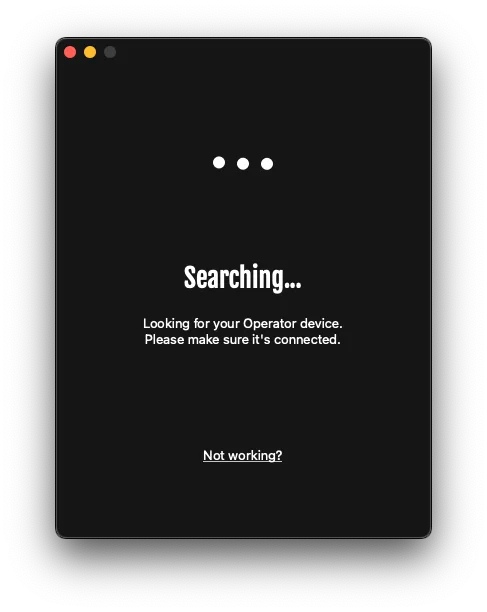
If Playback is continuously searching and not detecting your Operator device, follow these troubleshooting steps.
Check the LED first
Look at your Operator device’s LED:
- LED is off — See LED Not Powering On
- LED is flashing white — See LED Flashing White
- LED is solid white — Continue with the steps below
Close background programs
Other applications can interfere with device communication:
- Close all unnecessary programs
- Restart Playback
- Reconnect the Operator device
Disconnect other USB devices
USB devices like external drives, webcams, and some mouse/keyboard dongles can cause conflicts:
- Disconnect all non-essential USB devices
- Restart Playback
- Try connecting the Operator again
Check for conflicting software
Some installed programs can interfere with USB communication even when not visibly running:
- Streaming software (OBS, Streamlabs)
- Game capture software
- Other device management tools
Try temporarily uninstalling suspected programs and restart your PC.
USB connection checks
Try different cables and ports
- Test with the included USB cable
- Try multiple USB ports on your computer
- Connect directly — not through hubs or adapters
Verify your computer detects the device
Windows®: Check Device Manager for the Operator device
macOS®: Check System Information > USB
Linux: Run lsusb in terminal to list USB devices. Also ensure udev rules are configured (see Linux Setup).
Test on another computer
If available, try your Operator on a different computer to determine if the issue is with your specific setup.
Get help
If the problem persists, contact us with:
- Your operating system and version
- Computer model
- Steps you’ve already tried
Still need help? Contact our support team

