Save Vault
Automatic save backups that keep your progress safe.
3 min read
The Vault is Playback’s automatic save backup system that protects your game progress without any effort on your part.
What is it?
The Vault silently backs up your in-game saves every time you play. If your cartridge battery dies, your save gets corrupted, or you accidentally overwrite your progress, you can recover from the Vault.
How it works
Automatic backups happen:
- Every 5 minutes while playing (if the save has changed)
- When you exit a game
- When the game writes to save memory
Storage:
- Up to 250 backups per game are kept
- When you reach 250 backups, the oldest save is replaced by the newest save
- Each backup is timestamped so you know exactly when it was created
Where are Vault saves stored?
| Platform | Location |
|---|---|
| Windows® | %LOCALAPPDATA%\Epilogue\Playback\vault\ |
| macOS® | ~/Library/Application Support/Epilogue/Playback/vault/ |
| Linux | ~/.local/share/Epilogue/Playback/vault/ |
Inside the vault folder, saves are organized by game title:
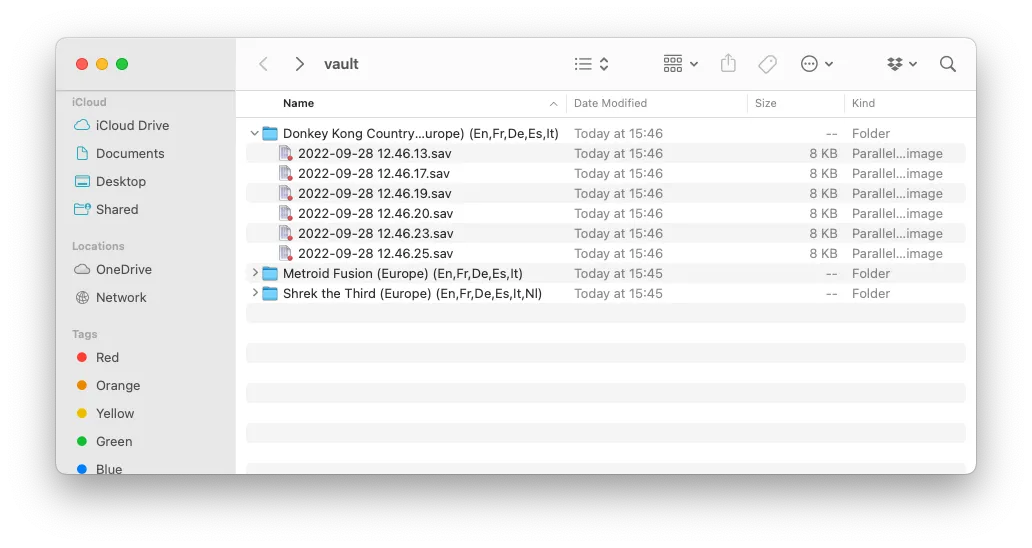
vault/
├── Game Title A/
│   ├── 2024-12-28 14.30.15.sav
│   ├── 2024-12-28 15.45.22.sav
│   └── ...
├── Game Title B/
│   └── ...
└── Game Title C/
    └── ...
Accessing the Vault
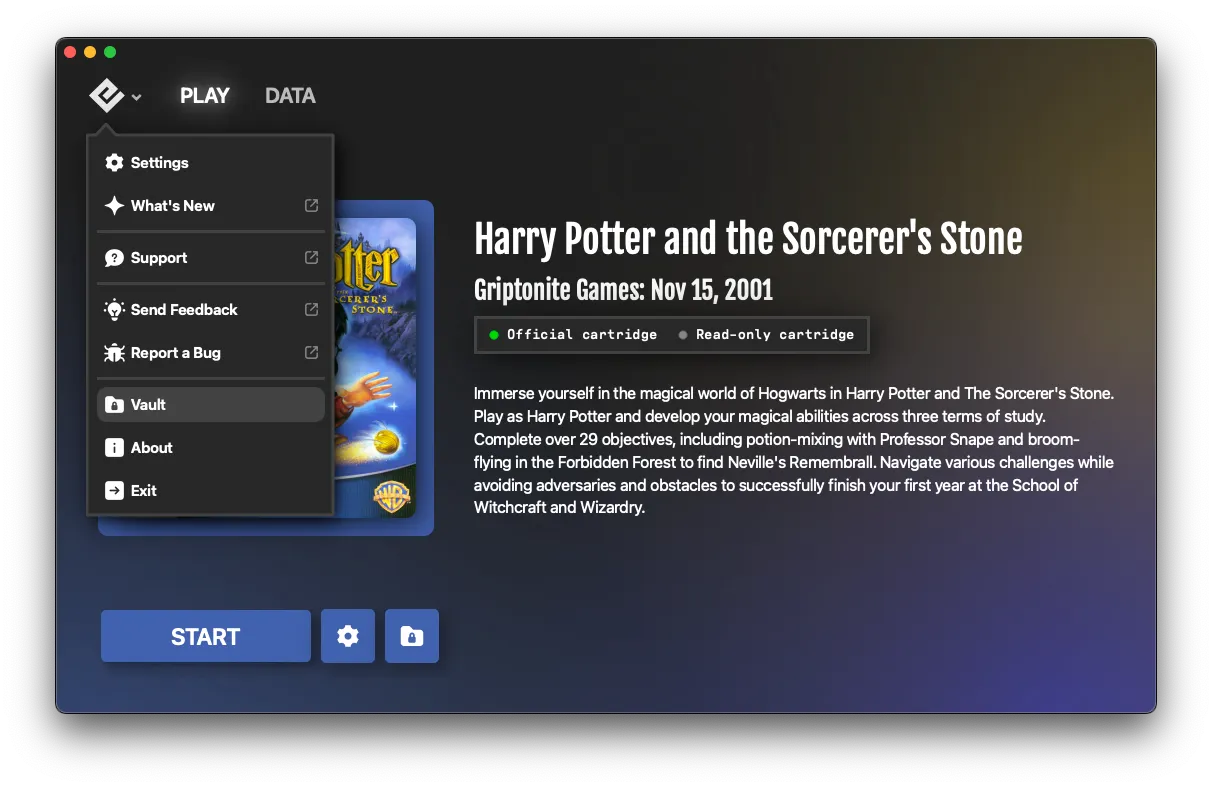
From the Play tab: Look for the Vault button next to the Settings cog icon on the right side of the Play tab. Clicking it opens your system’s file browser directly to that game’s vault folder.
From the menu:
- Click the Playback logo (top-left)
- Select Vault from the dropdown menu
Both methods open the same location — your vault folder for the currently inserted game.
Restoring a save from the Vault
- Open the Vault folder for your game
- Find the backup you want (sorted by date and time)
- Copy the
.savfile to a convenient location (like your Desktop) - In Playback, go to Data > Upload Save
- Select the backup file you copied
- The save is restored to your cartridge
File format
| Platform | Vault save extension |
|---|---|
| Game Boy® / GBC / GBA | .sav |
| SNES® | .sav |
Vault saves use the standard .sav format, compatible with most emulators. For SNES, .sav and .srm are interchangeable—just rename the extension if needed.
Use cases
| Scenario | How the Vault helps |
|---|---|
| Cartridge battery dies | Restore your last backup after replacing the battery |
| Accidentally overwrote a save | Go back to an earlier backup |
| Want to try different choices | Restore an old save to replay a section differently |
| Cartridge gets corrupted | Recover from any of your 250 backup points |
| Sharing saves | Copy a vault save to share with friends |
Vault vs Autosave to Cartridge
These are two different features that work together:
| Feature | What it does |
|---|---|
| Vault (this article) | Automatically backs up saves to your computer. Always running in the background. |
| Autosave to Cartridge | Writes saves to your physical cartridge whenever the game saves, just like original hardware. Enabled by default. |
Both features can be active at the same time. The Vault provides backup protection on your computer, while Autosave to Cartridge keeps your physical cartridge up-to-date so you can continue playing on original hardware.
See also
- Protecting Your Save Data — Best practices for save protection
- Transferring Saves — Manual save backup and restore
- Data Folder Locations — Where all Playback data is stored
- Measuring Cartridge Battery — Check if your battery needs replacing
Still need help? Contact our support team

