The Play Tab
Learn about the Play tab in Playback and all its features.
3 min read
The Play tab is your main screen for playing games in Playback. It shows game information before you start, then transforms into the emulation screen when you launch a game.
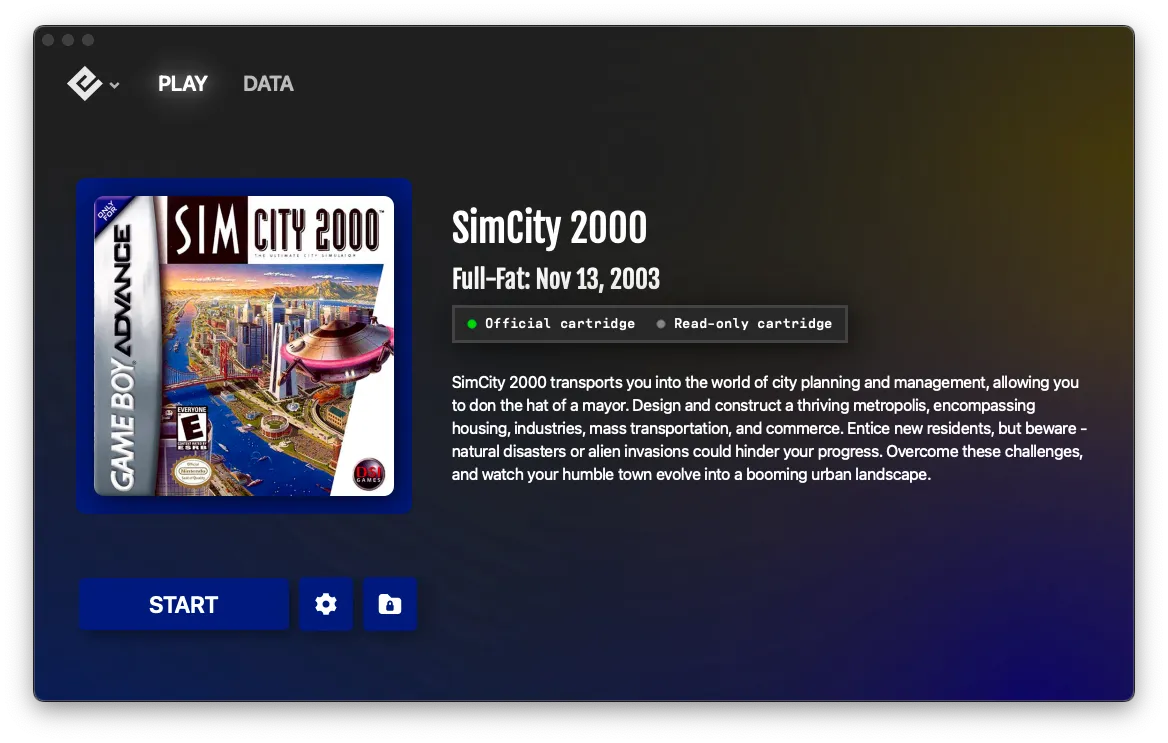
Before playing
When you insert a cartridge, the Play tab displays:
- Game artwork on the left side of the screen
- Title of the game
- Description with a short summary
- Developer who made the game
- Release date when the game was originally published
- Review written by our team
- Rating in stars
Cartridge authenticity
Below the game information, Playback shows whether your cartridge is:
- Official — a legitimate, original cartridge
- Unofficial — a reproduction or flashcart
- Unrecognized — couldn’t verify authenticity
Main controls
On the right side of the Play tab, you’ll find:
- Start — Launch the game
- Settings (cog icon) — Open settings menu
- Vault (next to Settings) — Access the Save Vault for this game
You can also access the Vault from the menu dropdown (click the Playback logo in the top-left corner).
During emulation
When you click Start, the Play tab transforms into the emulation screen. Your game appears with a control bar at the bottom.
Emulator control bar
The control bar appears during gameplay with these buttons:
| Button | Description |
|---|---|
| Play/Pause | Pause and resume gameplay |
| Rewind | Go back in time (if enabled) |
| Fast-forward | Speed up gameplay (if enabled) |
| Soft Reset | Restart the game (if enabled) |
| Shaders | Apply visual filters |
| Volume | Adjust or mute audio |
| Settings | Access emulator settings |
| Picture-in-Picture | Shrink to floating window (if enabled, Windows®/macOS® only) |
| Fullscreen | Toggle fullscreen mode |
Rewind, Fast-forward, Soft Reset, and Picture-in-Picture buttons only appear if you’ve enabled them in Settings > Playback.
Exiting emulation
There are two ways to exit emulation:
- Press Escape — Pauses the game and shows the exit dialog
- Click the Play or Data tab — Returns to the main interface
If you’re in fullscreen mode, press Escape first to exit fullscreen, then press Escape again or click a tab to exit emulation.
Tips
- Make sure your cartridge is fully inserted before launching a game
- If the game doesn’t appear, try removing and reinserting the cartridge
- Clean your cartridge contacts if you’re having detection issues
See also
- Keyboard Shortcuts — Default controls
- Rewind and Fast-Forward — Speed up or undo gameplay
- Fullscreen Mode — Immersive fullscreen play
- Picture-in-Picture Mode — Play in a floating window
Still need help? Contact our support team

