Game Boy Camera as Webcam
Use your Game Boy Camera as a retro webcam for streaming and video calls.
3 min read
Turn your Game Boy® Camera into a working webcam using Playback and streaming software like OBS.
What you’ll need
- GB Operator device
- Game Boy Camera cartridge
- OBS Studio (or similar streaming software)
- Playback app
Setup steps
1. Configure Playback
Before starting:
- Go to Settings > Core Selector and ensure mGBA is selected
- Go to Settings > Emulator and disable Use Super Game Boy® Borders for a larger picture
2. Start the Game Boy Camera
- Insert your Game Boy Camera into the GB Operator
- Click Start to launch the emulator
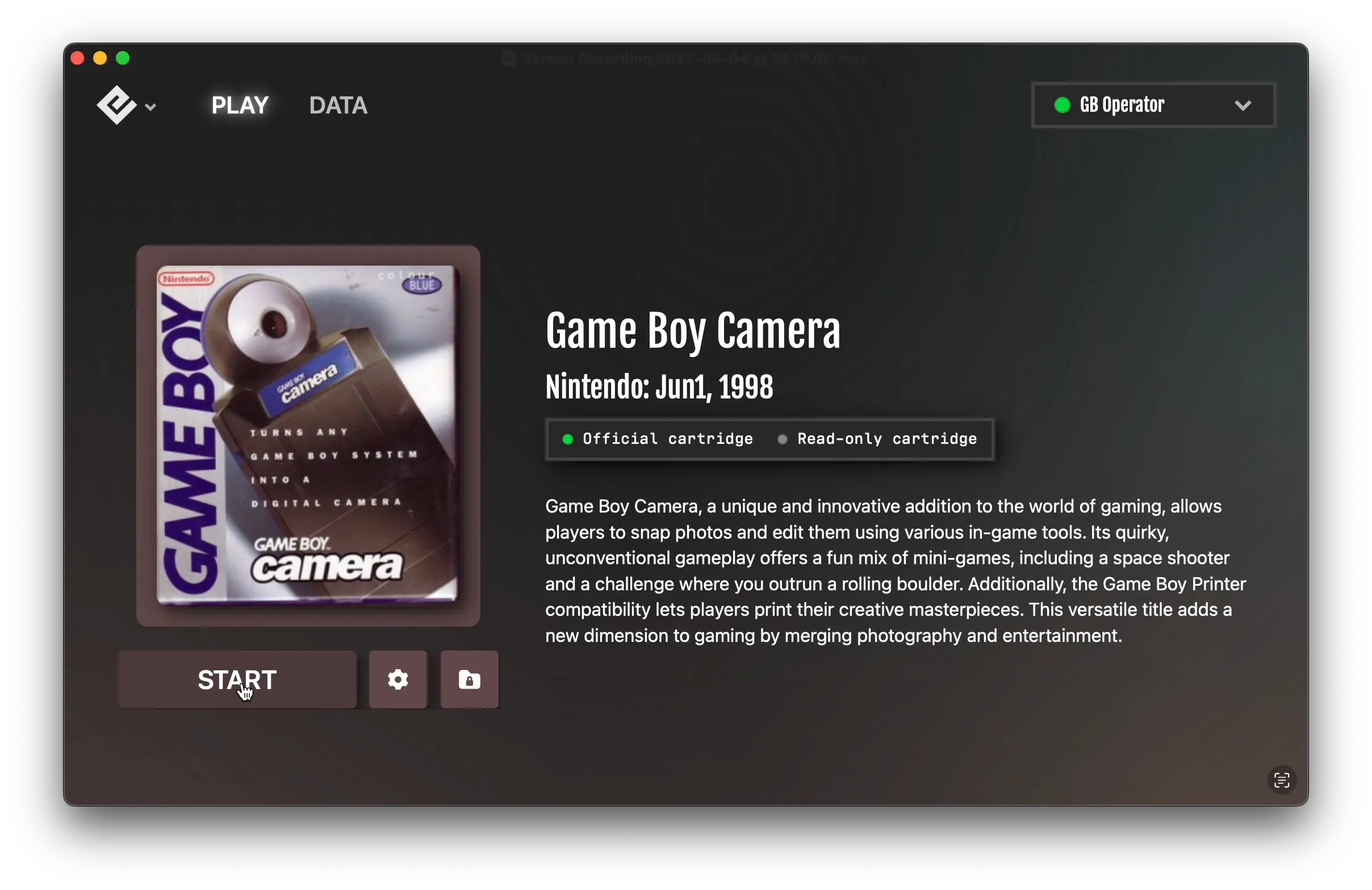
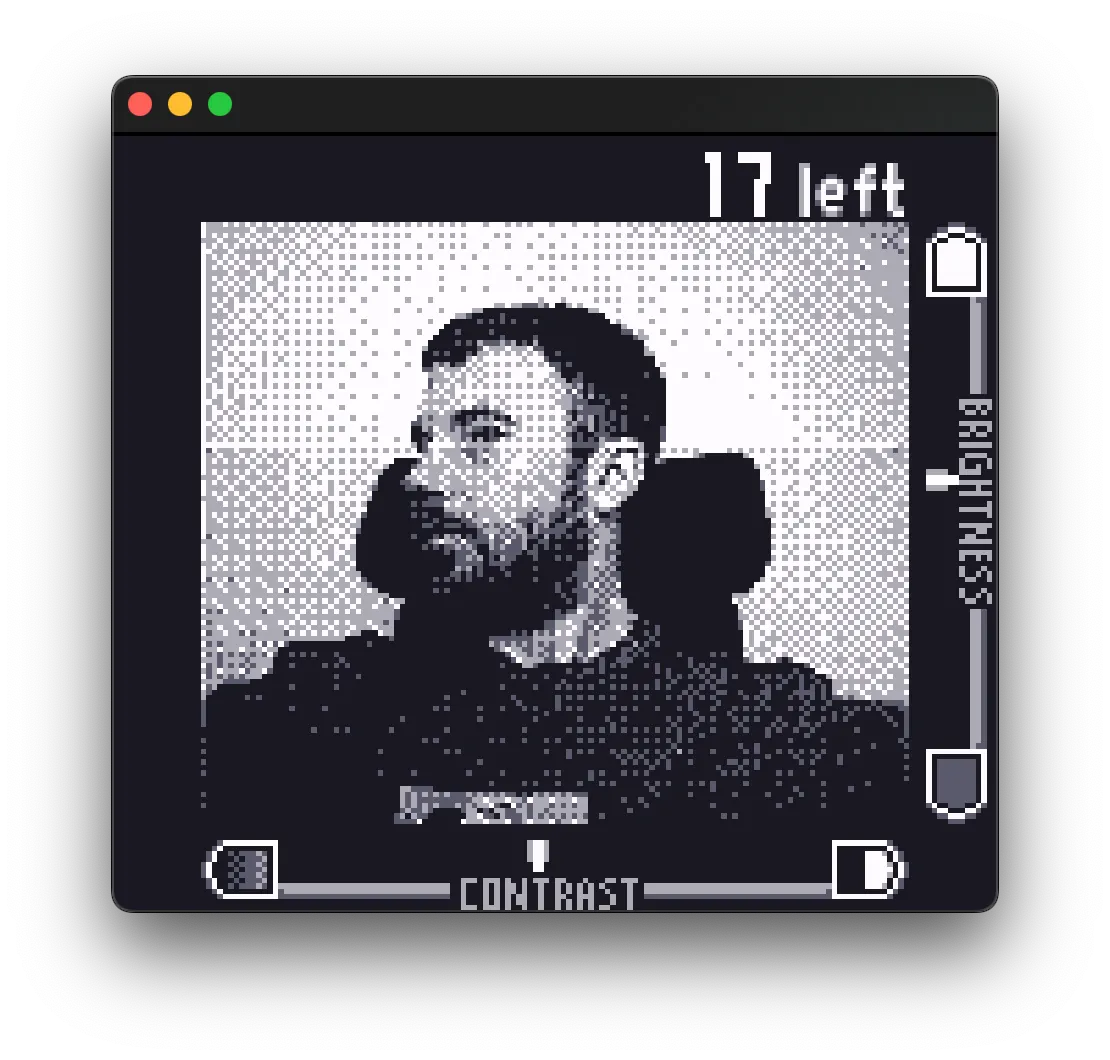
- Navigate to the camera’s shoot mode
3. Resize the window
Resize the Playback emulator window so only the camera viewfinder is visible. This gives you a cleaner capture in OBS.
4. Set up OBS
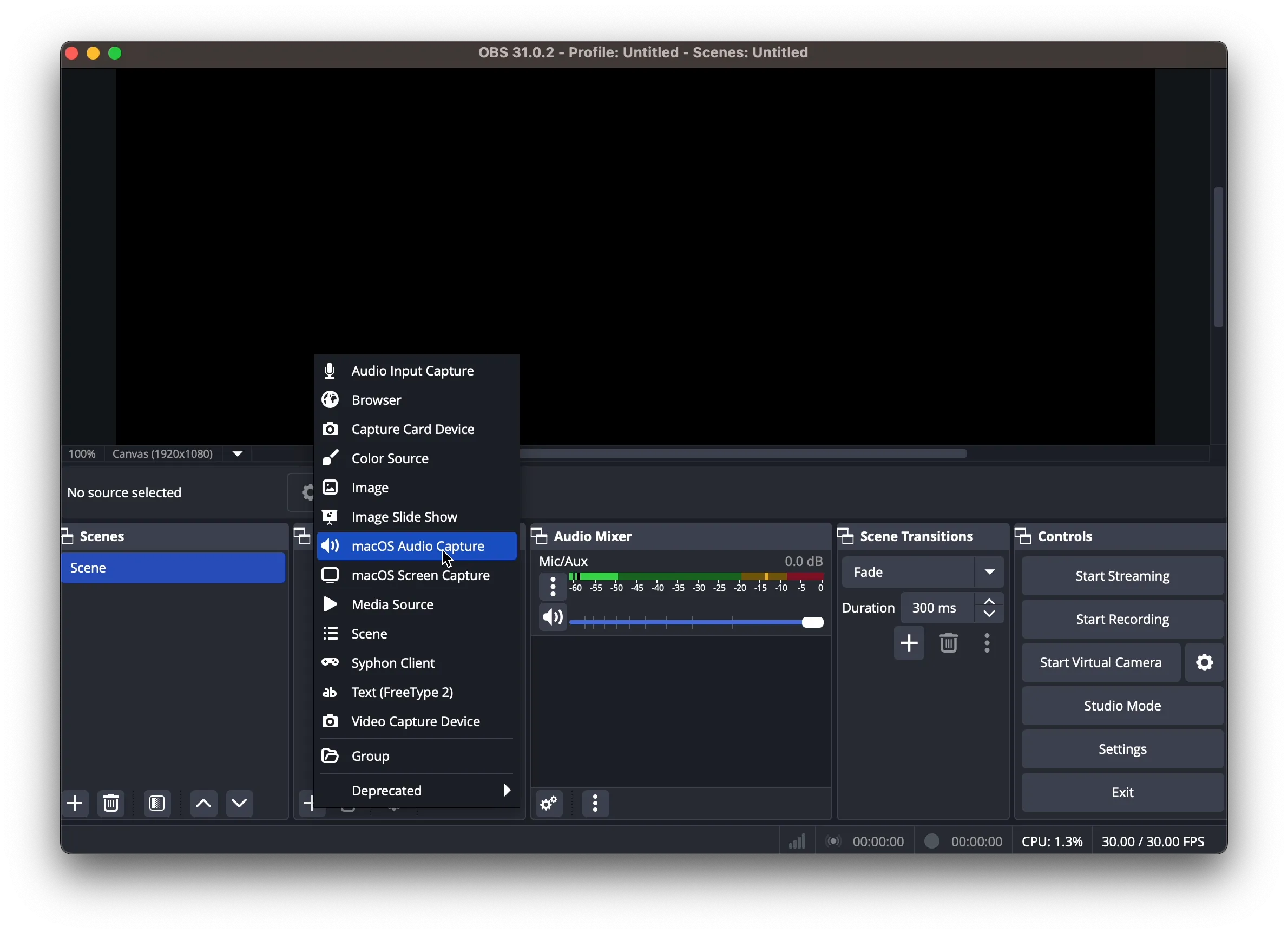
- Open OBS Studio
- Click + in the Sources panel

- Select Window Capture (or macOS® Screen Capture on Mac)
 4. Create a new source and select the Playback window
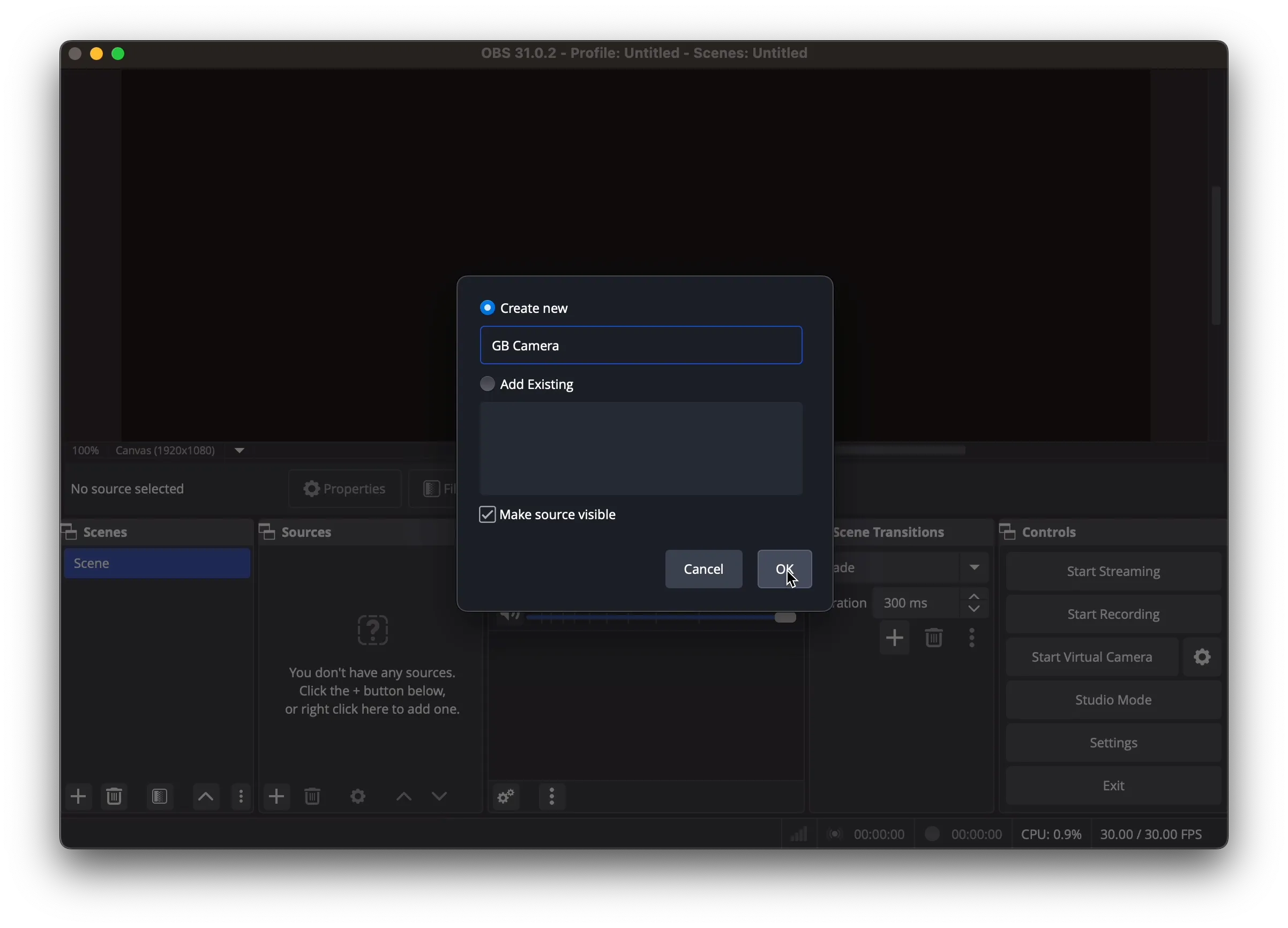
- Configure the capture:
- Method: Window Capture
- Window: Playback
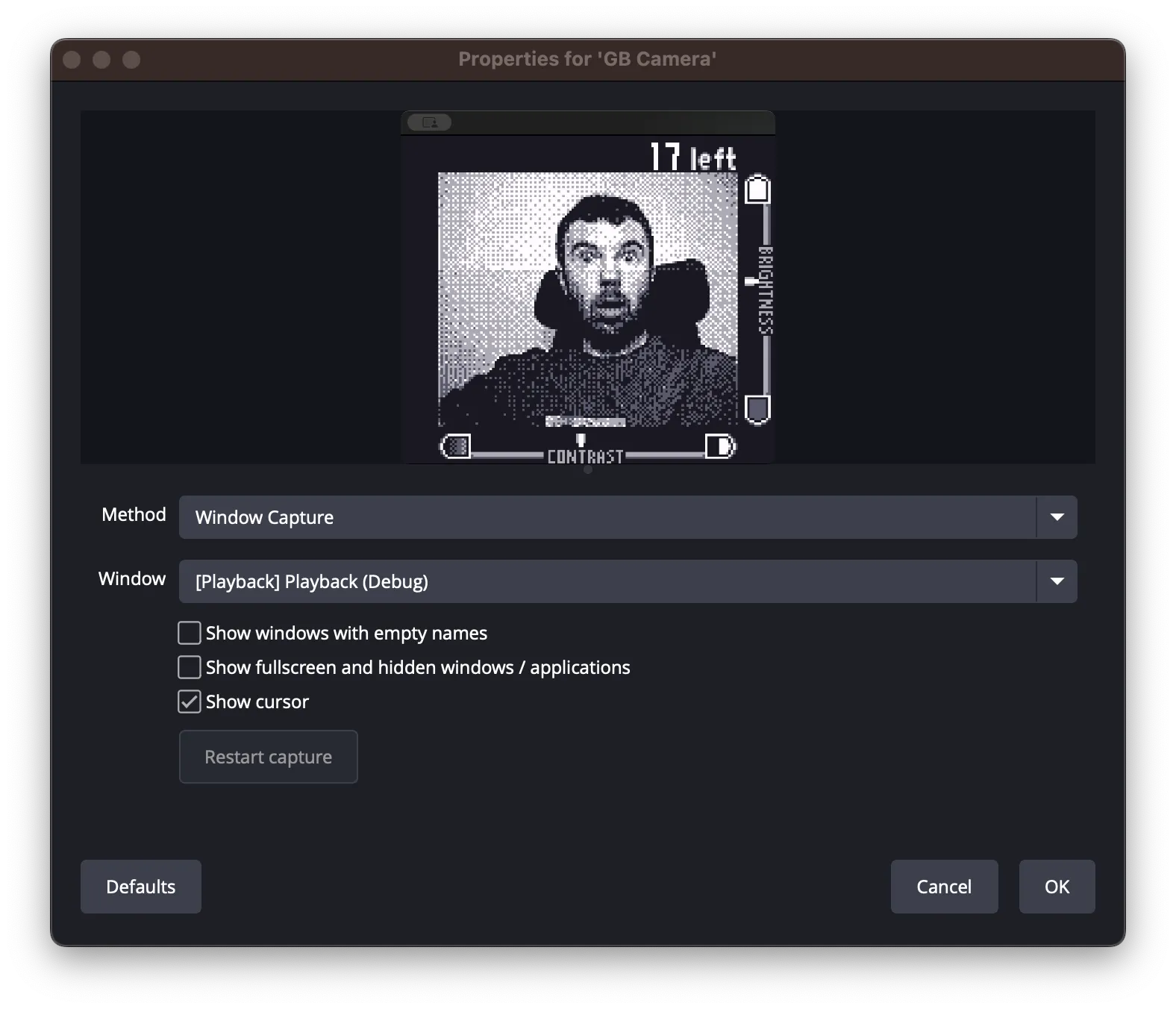
5. Crop the image
To capture just the camera feed:
- Disable Lock Preview in OBS
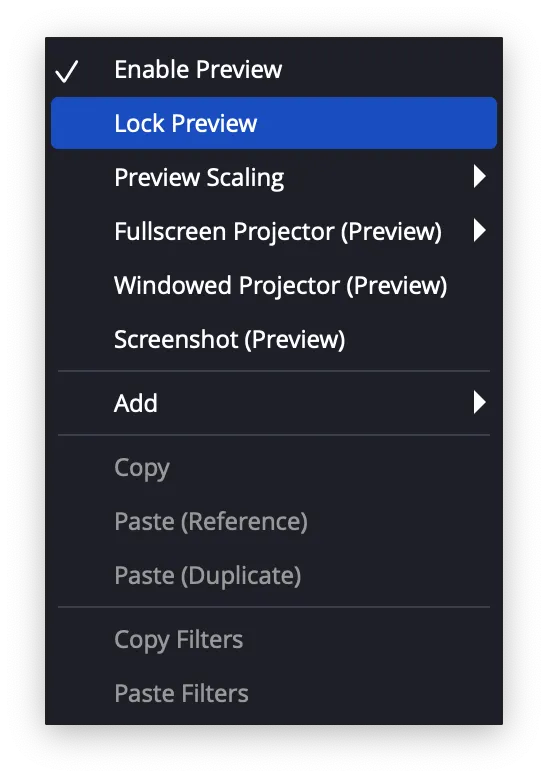
- Hold Alt (Windows®) or Option (Mac) while dragging the edges
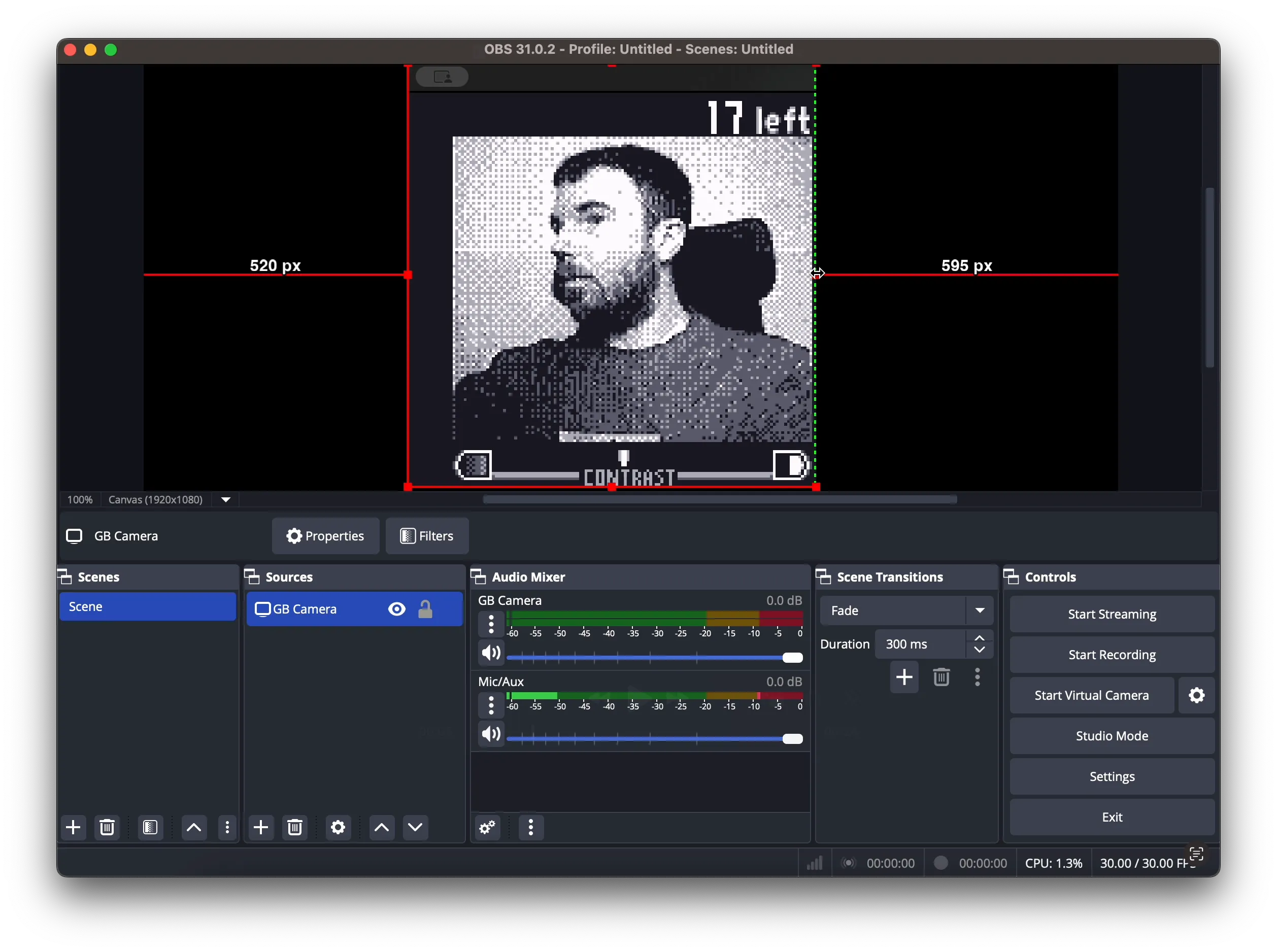
- Crop to show only the Game Boy Camera viewfinder
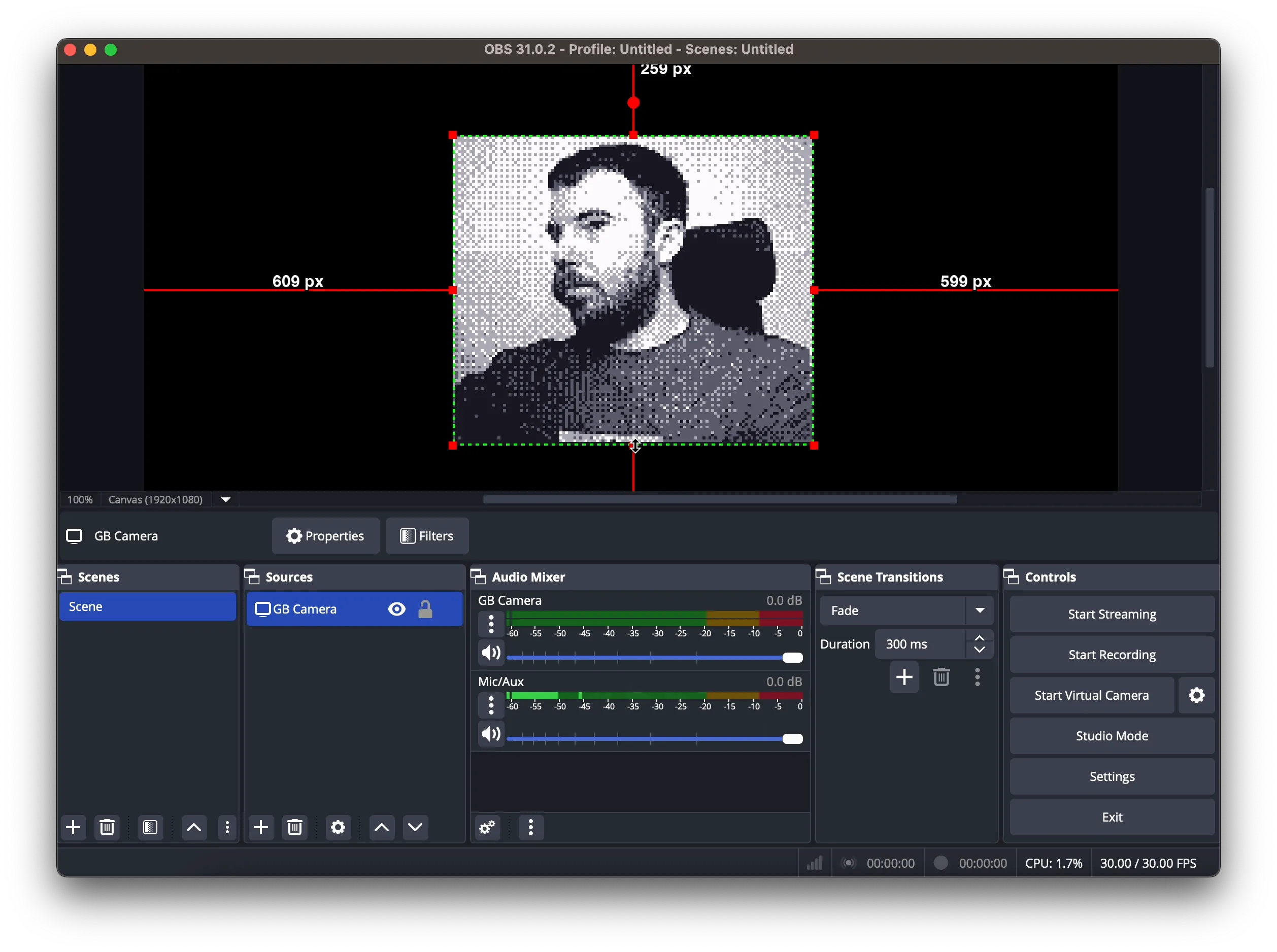
- Resize and center as needed
6. Start the virtual camera
- Click Start Virtual Camera in OBS
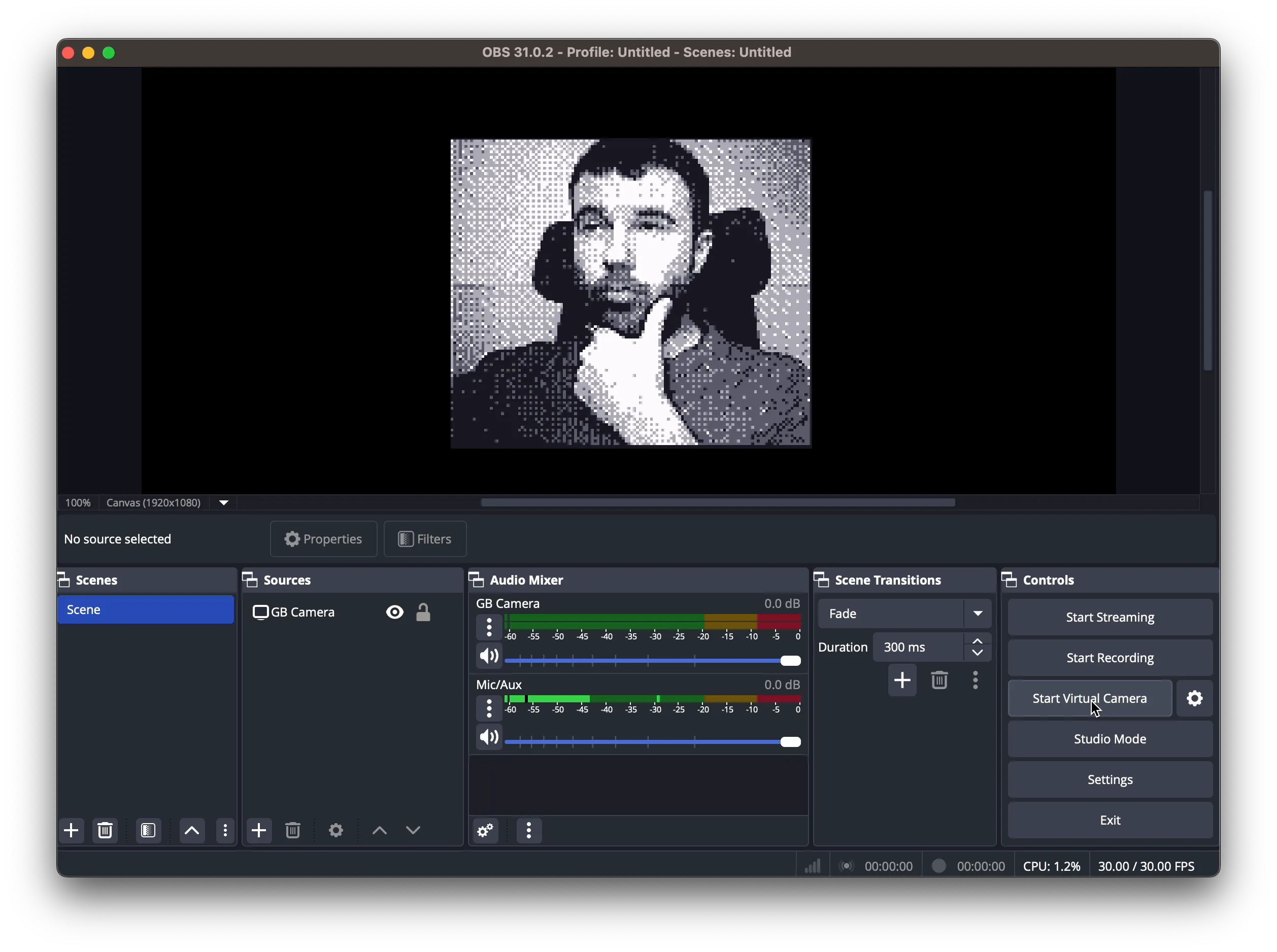
- Your Game Boy Camera is now available as a webcam in any app
Using the webcam
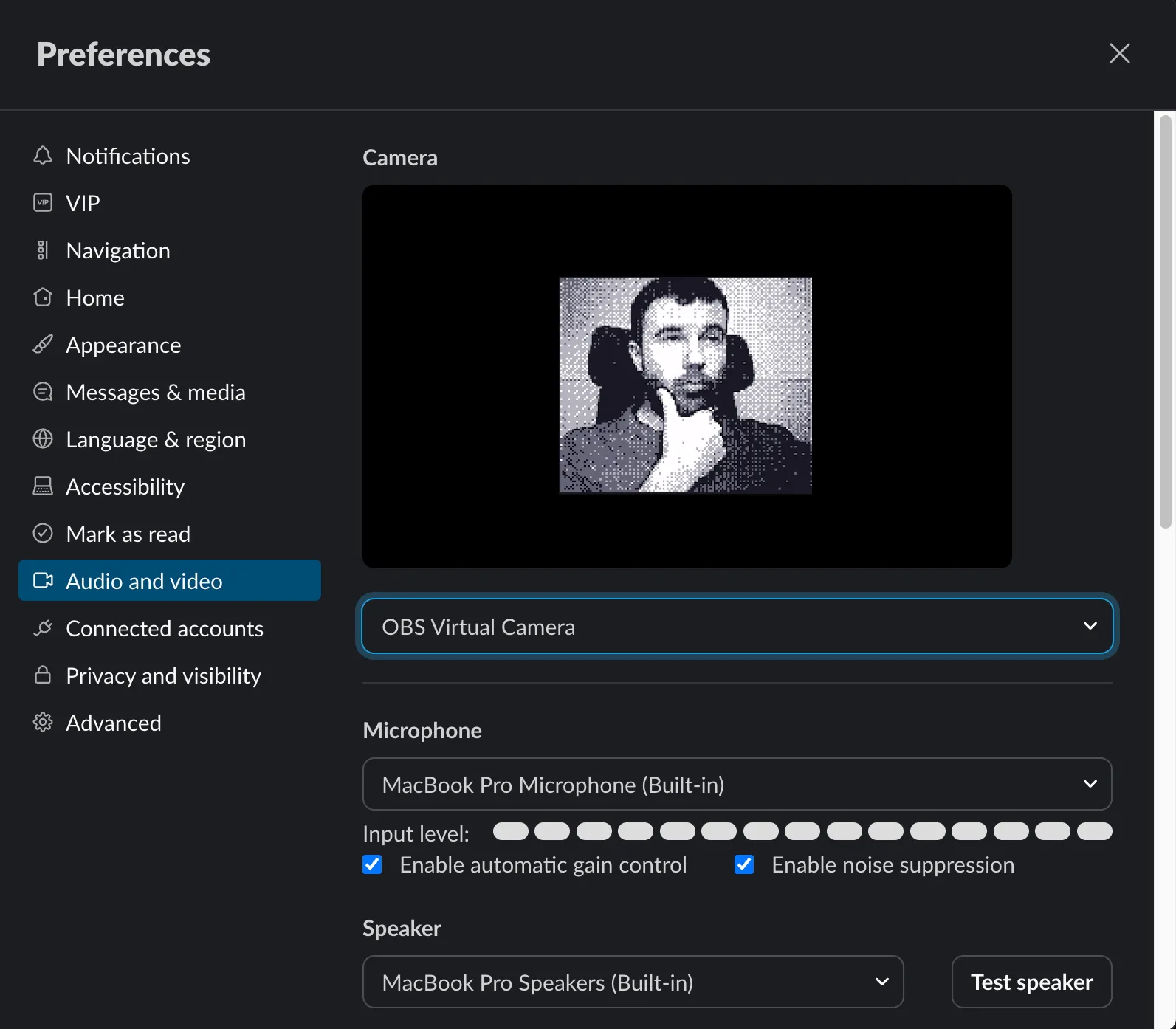
Once the virtual camera is running, you can select it in:
- Video conferencing apps (Zoom, Teams, Slack, Discord®)
- Streaming platforms (Twitch, YouTube Live)
- Recording software
Tips
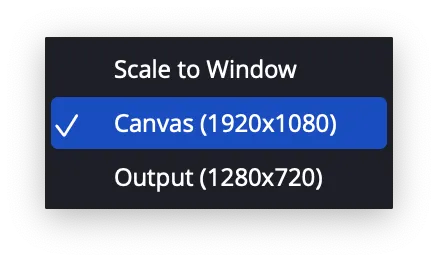
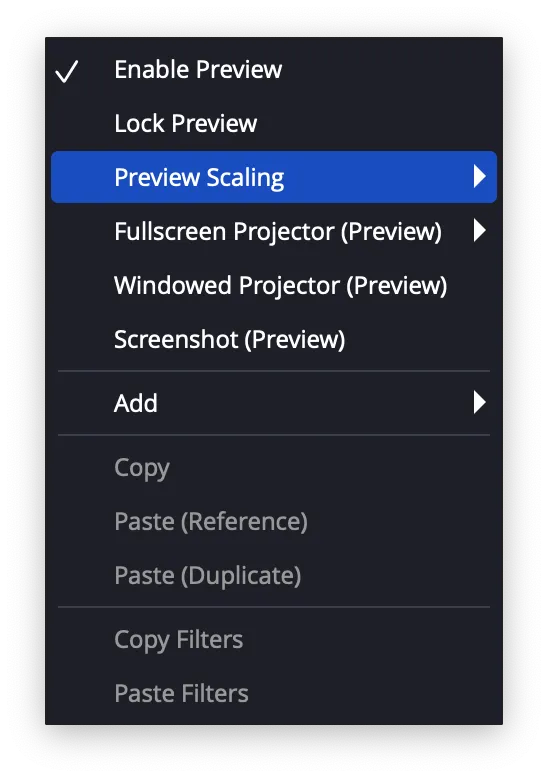
- For best clarity, right-click the OBS preview and go to Preview Scaling > Canvas Resolution
- The Game Boy Camera has a 128x112 pixel resolution — embrace the retro aesthetic
- Works great for themed streams, creative projects, or memorable video calls
- Use good lighting for better results from the low-resolution sensor
Still need help? Contact our support team

