The Data Tab
Manage your cartridge data with backup and upload features.
2 min read
The Data tab is your control center for managing the data on your cartridges. From here you can back up games and saves, upload homebrew, and manage Game Boy® Camera photos.
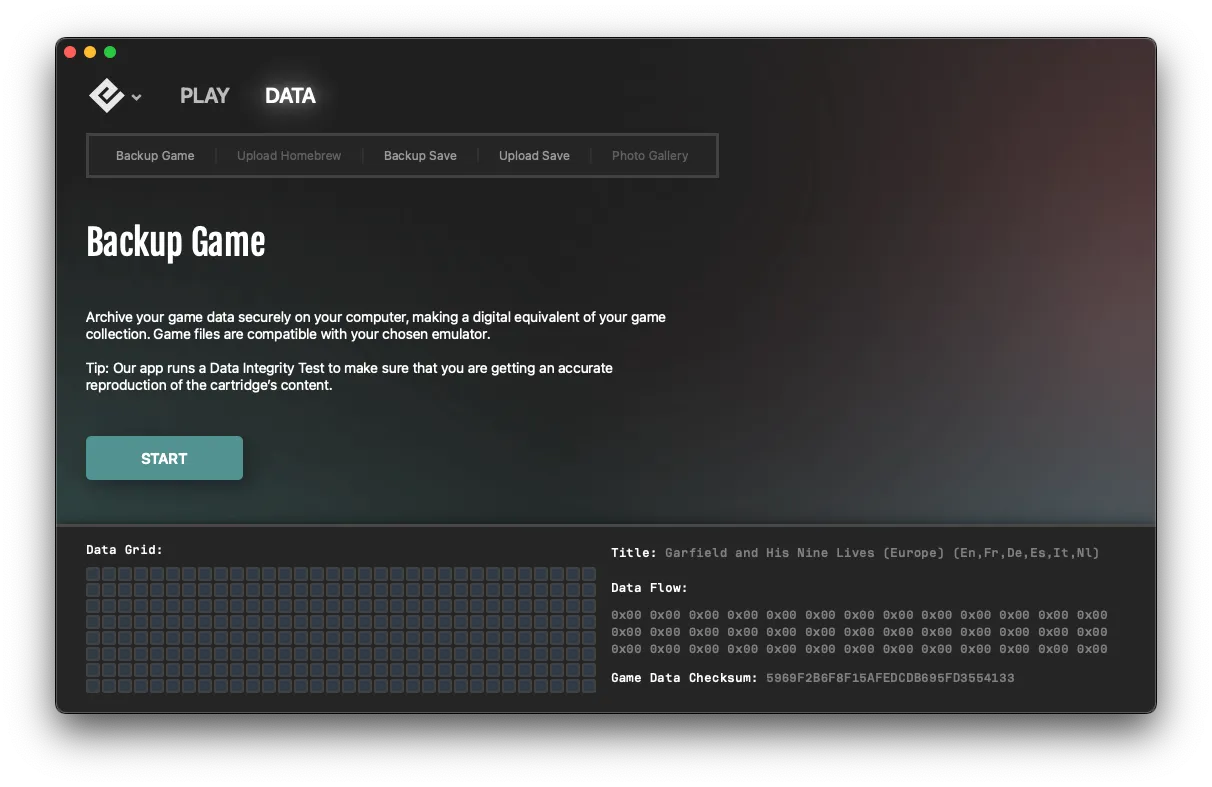
Backup Game
Create a personal backup of your game cartridge for archival purposes. The backup file can be used with external emulators or kept as part of your collection archive.
Upload Homebrew
Upload homebrew games to rewritable cartridges. This feature works with flashcarts and other programmable cartridges, allowing you to:
- Test your own homebrew creations
- Play fan-made games on original hardware
- Use flashcarts with your Operator device
Backup Save
Download the save file from your cartridge to your computer. This is essential for:
- Protecting your progress before a battery replacement
- Creating backups of important saves
- Transferring saves to other devices or emulators
Upload Save
Restore a save file from your computer back onto your cartridge. Use this to:
- Restore a previous backup
- Continue a save from an emulator on real hardware
- Share saves between cartridges
Photo Gallery (Game Boy Camera)
If you’re using a Game Boy Camera, the Photo Gallery lets you:
- View all photos stored on the cartridge
- Download photos to your computer as PNG files
- Choose from various resolution options
- Delete photos to free up space
Additional information
At the bottom of the Data tab, you’ll find:
- Data Grid — shows progress during upload/download operations
- Title — the game title written on the cartridge
- Data Flow — visualization of data being transferred
- Checksum — verifies data integrity during operations
Data settings
Data verification options are available in Settings > Playback. These settings help ensure data integrity during transfers. See Playback Settings for details.
Tips
- Always back up your save before uploading a new one
- Clean cartridge contacts before performing data operations
- Don’t disconnect the cartridge or device during transfers
See also
- Save Vault — Automatic save backups
- Transferring Saves — Moving saves between devices
- Cleaning Cartridge Contacts — Prepare cartridges for data operations
- Playback Settings — Data verification settings
Still need help? Contact our support team

