Steam Deck Setup
A step-by-step guide to installing Playback on your Steam Deck.
3 min read
The Steam Deck® is a great way to enjoy your retro game collection on the go. This guide will walk you through setting up Playback and your Operator device.
What you’ll need
- Steam Deck
- Operator device (GB Operator or SN Operator)
- USB-C cable or USB-C dock
Installing Playback
First, switch to Desktop Mode by long-pressing the power button and selecting “Switch to Desktop.”
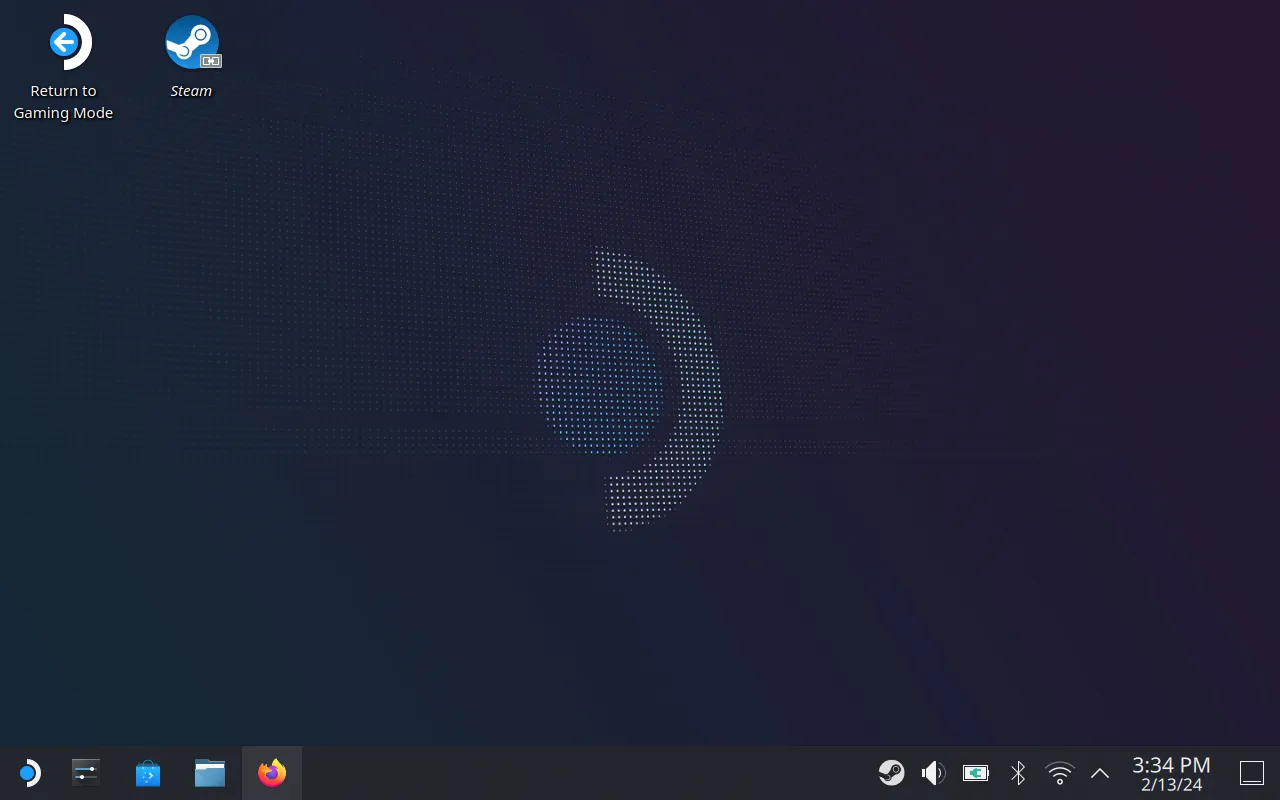
You can use the virtual keyboard by pressing Steam + X buttons simultaneously, or connect a physical keyboard.
Download the app
- Open Firefox (pre-installed on Steam Deck)
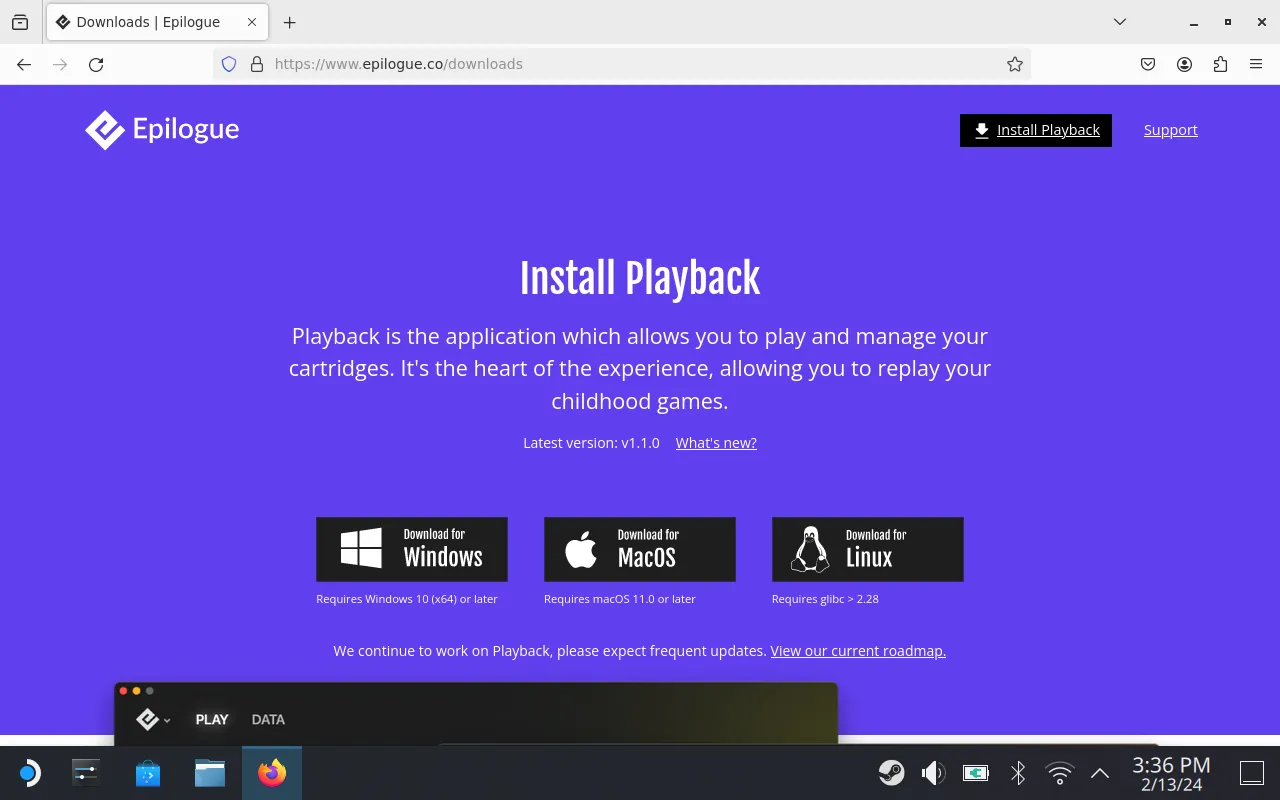
- Go to epilogue.co/downloads
- Click “Download for Linux” to download the AppImage
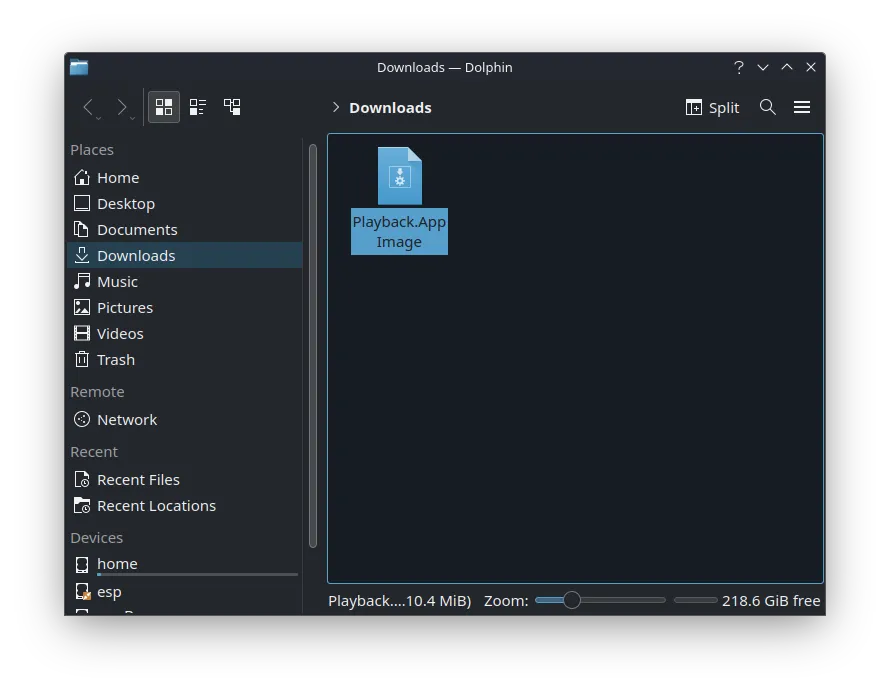
- The file will be saved to your Downloads folder
Make it executable
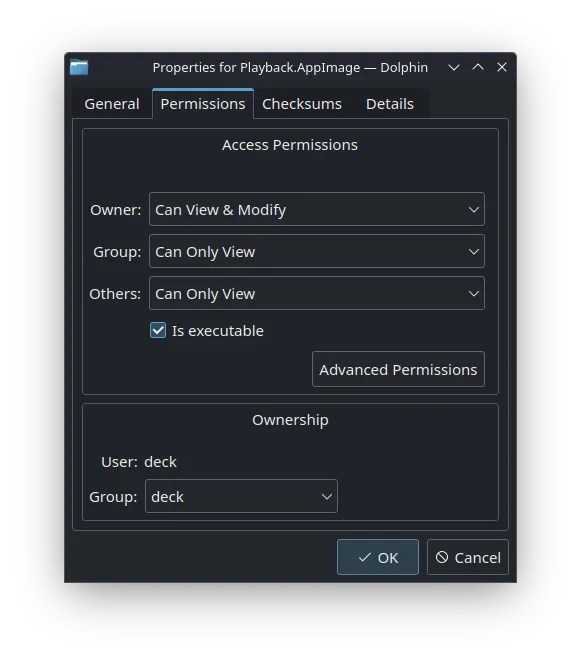
- Open the file manager and navigate to Downloads
- Tap and hold the Playback AppImage file
- Tap “More” and select “Properties”
- Go to the “Permissions” tab
- Enable “Is executable”
- Click “OK”
Setting up permissions
When you first run Playback, it may not detect your Operator device. This is because SteamOS needs additional permissions.
Set a password (if you haven’t already)
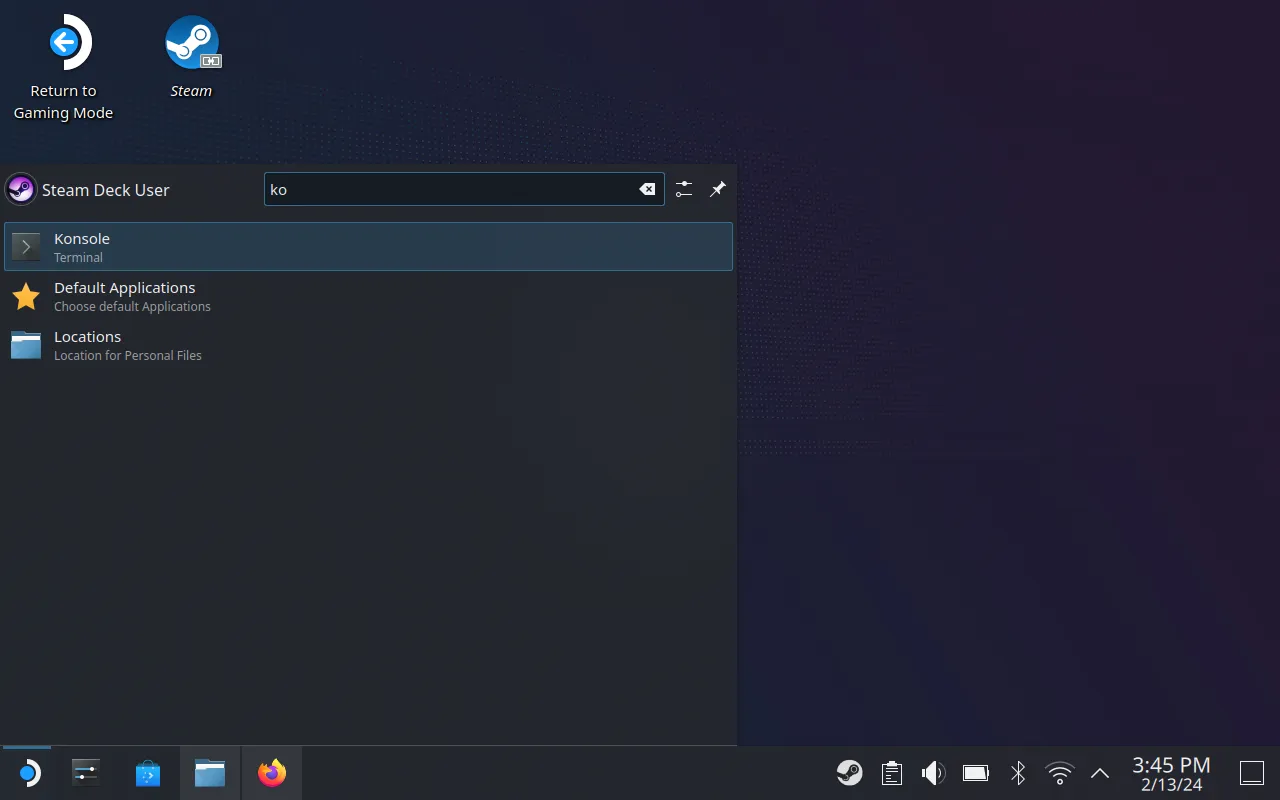
- Open Konsole (System > Konsole from the application menu)
 2. Type
 passwd and press Enter 3. Enter and confirm a new password
Grant device permissions
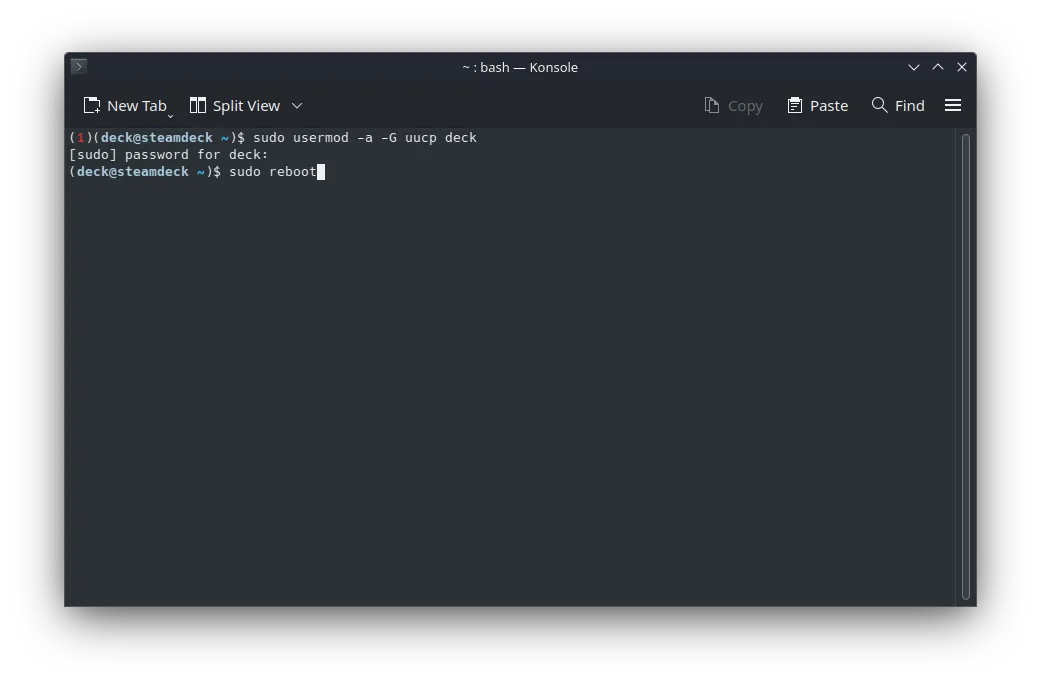
In Konsole, run:
sudo usermod -a -G uucp deckEnter your password when prompted.
Reboot
Reboot your Steam Deck to apply the changes:
sudo rebootUsing Playback on Steam Deck
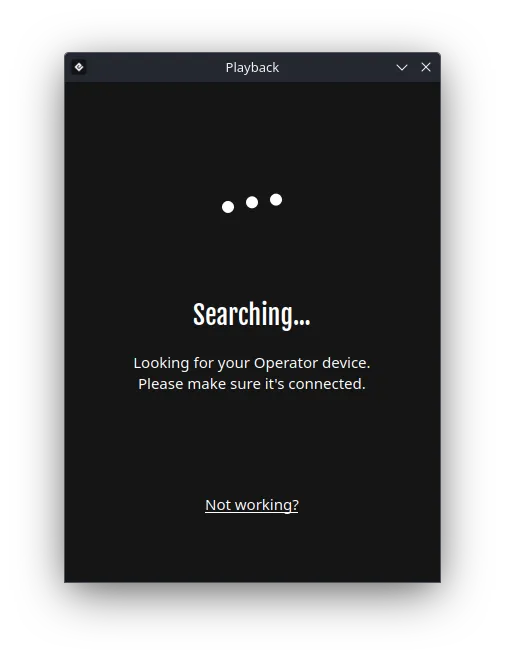
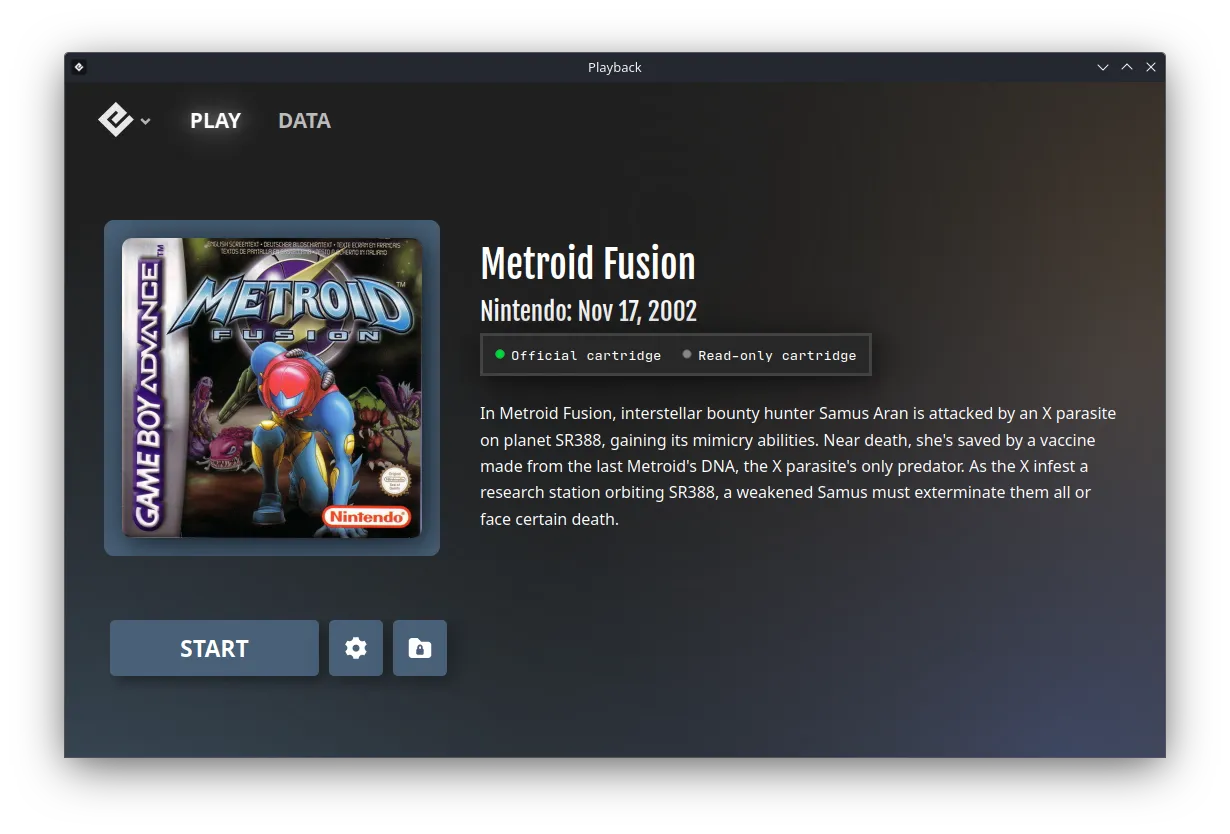
After rebooting, switch back to Desktop Mode and run Playback. Your Operator device should now be detected.
Controller tips
In Desktop Mode, the Steam Deck’s buttons have predefined actions (for example, B closes windows). To use the buttons properly with Playback:
- Long-press the Menu/Start button (☰) to switch to Gamepad mode
- This allows you to use the Steam Deck controls as a game controller in Playback
Adding to Gaming Mode (optional)
To launch Playback from Gaming Mode:
- In Desktop Mode, right-click the Playback AppImage
- Select “Add to Steam”
 3. Switch back to Gaming Mode 4. Find Playback in your library under “Non-Steam Games”
Troubleshooting
Operator not detected?
- Make sure you’ve completed the permission setup and rebooted
- Try a different USB-C port or cable
- If using a dock, try connecting directly to the Steam Deck
No audio?
- Check that the Steam Deck’s volume is turned up
- In Playback settings, verify the correct audio output is selected
Still need help? Contact our support team

