Video and Audio Settings
Configure display palettes, color correction, borders, and audio options.
3 min read
The Video and Audio settings let you customize how games look and sound, from authentic retro aesthetics to modern quality improvements.
Note: Many of the settings described below are specific to the mGBA core (GB Operator). Each emulator core may have a different subset of features available.
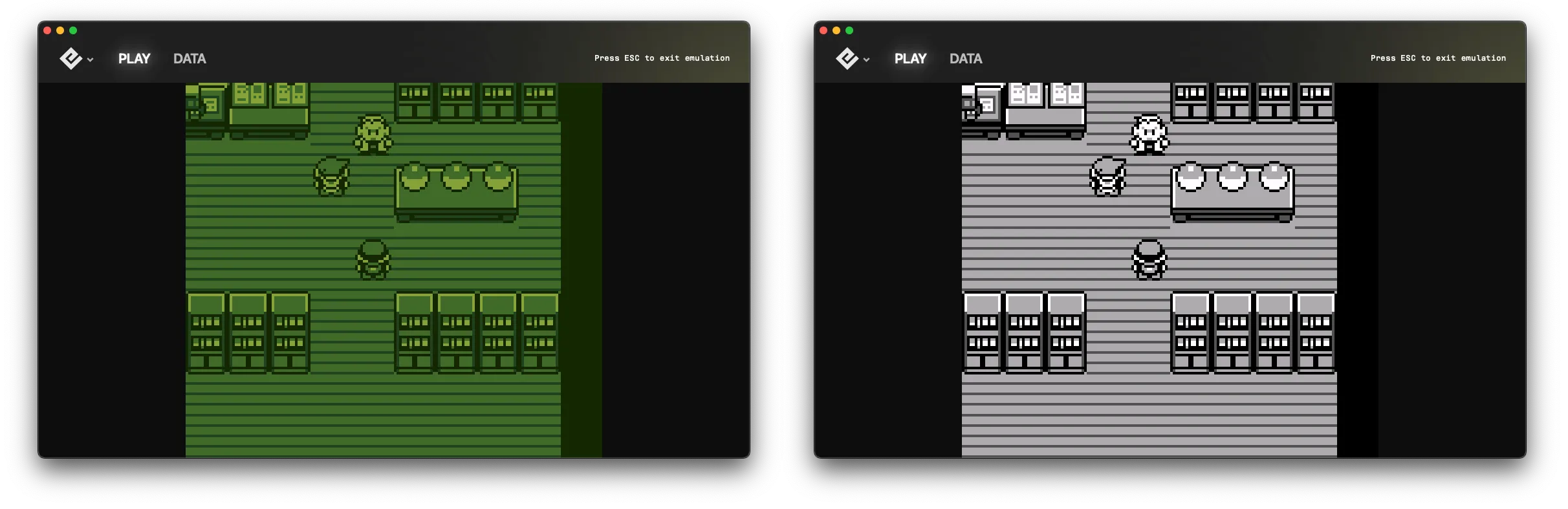
Visual filters
Playback includes built-in visual filters that simulate different display types:
| Filter | Effect |
|---|---|
| Stock | Clean, unfiltered output |
| Living Room TV | Simulates a living room television with scanlines |
| Black & White TV | Monochrome CRT effect |
| Old VHS | Old videotape aesthetic with color bleeding |
| Game Boy® LCD | Mimics the original Game Boy screen |
| Game Boy Advance® LCD | Mimics the GBA screen characteristics |
| No Pixels | Smoothing filter that reduces pixelation |
For more advanced filters using custom shaders, see Custom Shaders.
Video settings
Default Game Boy palette
Choose the color palette for original Game Boy games that don’t have built-in color support:

- Original DMG — Classic green-tinted display
- Game Boy Pocket — Neutral gray tones
- Game Boy Light — Greenish backlit look
- Various custom palettes for different visual styles
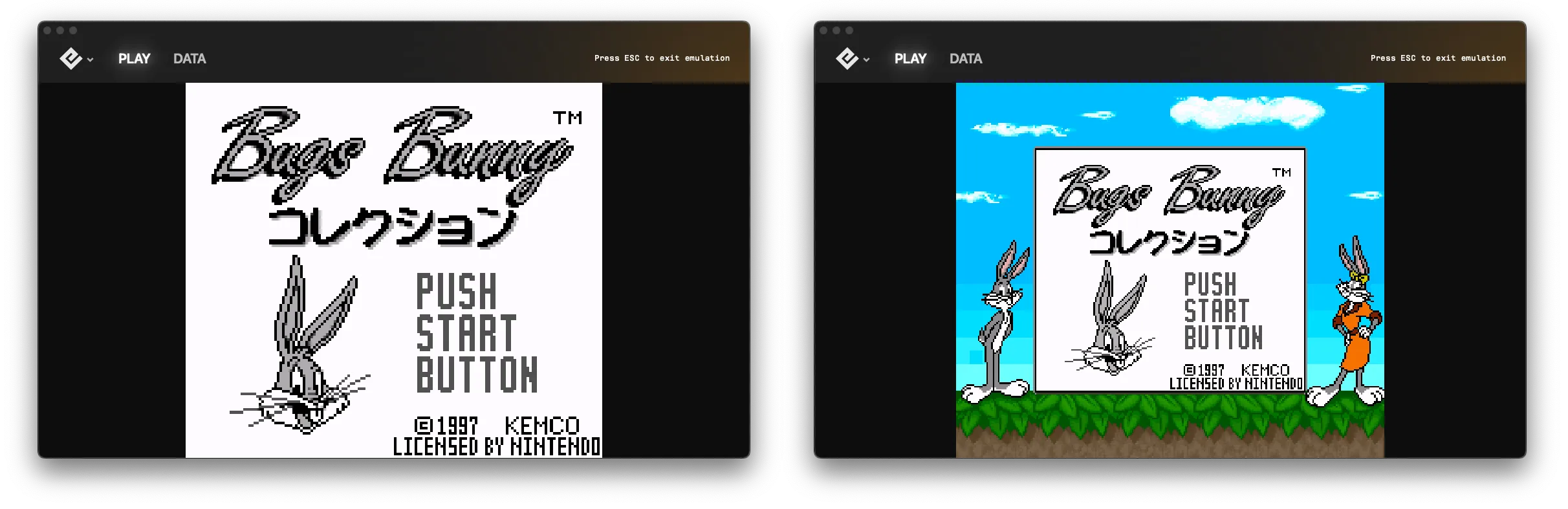
Hardware preset Game Boy palettes
Enable this to use the color palettes that Game Boy Color® and Super Game Boy® hardware would apply to compatible games. Restart Playback after changing this setting.
Use Super Game Boy borders
Display the decorative borders designed for Super Game Boy-enhanced games. These borders recreate the authentic look of playing Game Boy games on a Super NES. Restart required after changing.
Color correction
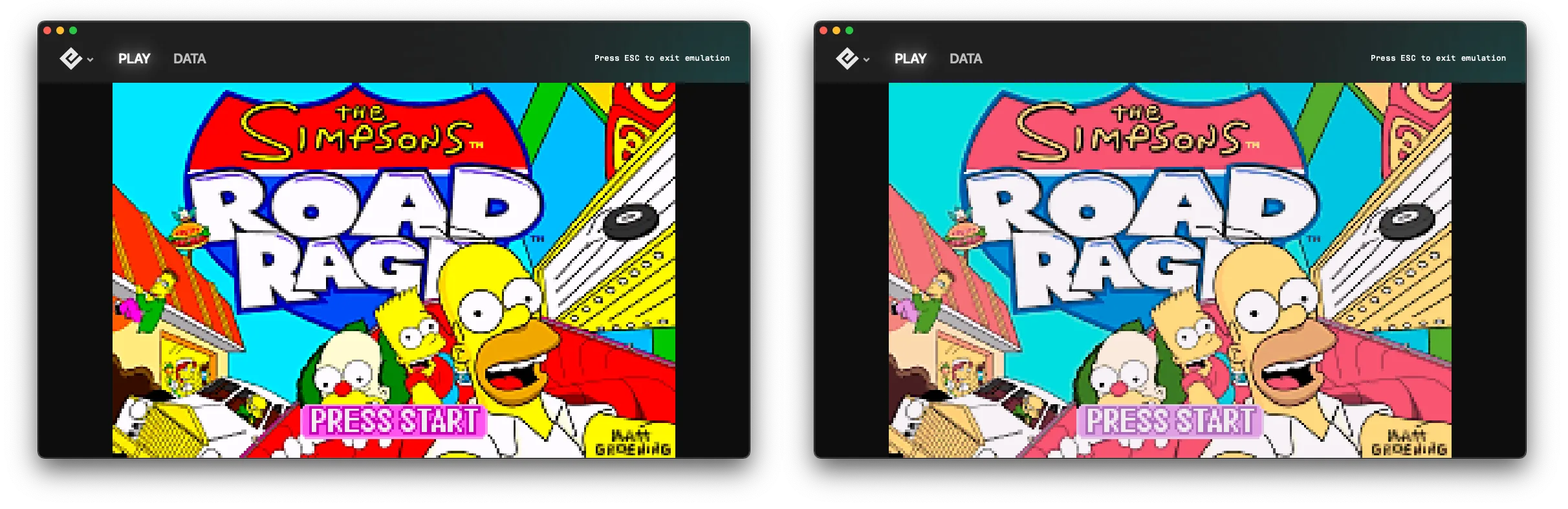
Adjust output colors to match the actual display characteristics of original GBA and GBC hardware. This ensures colors appear as they would on the original consoles.
Interframe blending
Controls how frames blend together, important for games that use LCD ghosting effects:
- Off — No blending between frames
- Simple — 50/50 mix of current and previous frame
- Smart — Only blends flickering pixels, optimizing visual consistency
- LCD Ghosting — Mimics original LCD response times by blending multiple frames
Use Simple or Smart for games that rely on LCD ghosting for transparency effects.
Audio settings
Audio filter
Enable a low-pass audio filter to reduce harshness in retro game audio. This smooths out high frequencies that can sound abrasive on modern speakers.
Audio filter level
When the audio filter is enabled, this controls how aggressively high frequencies are reduced:
- Higher values — More aggressive filtering, smoother sound
- Lower values — Milder effect, preserves more original character
Tips
- Experiment with palettes to find your preferred look for each game
- LCD Ghosting is most authentic but Simple/Smart work well for most games
- The audio filter is a matter of preference — try both on and off
See also
- Custom Shaders — Advanced visual effects
- Borders and Palettes — Super Game Boy borders
- Settings Overview — General settings
Still need help? Contact our support team

