Custom Shaders
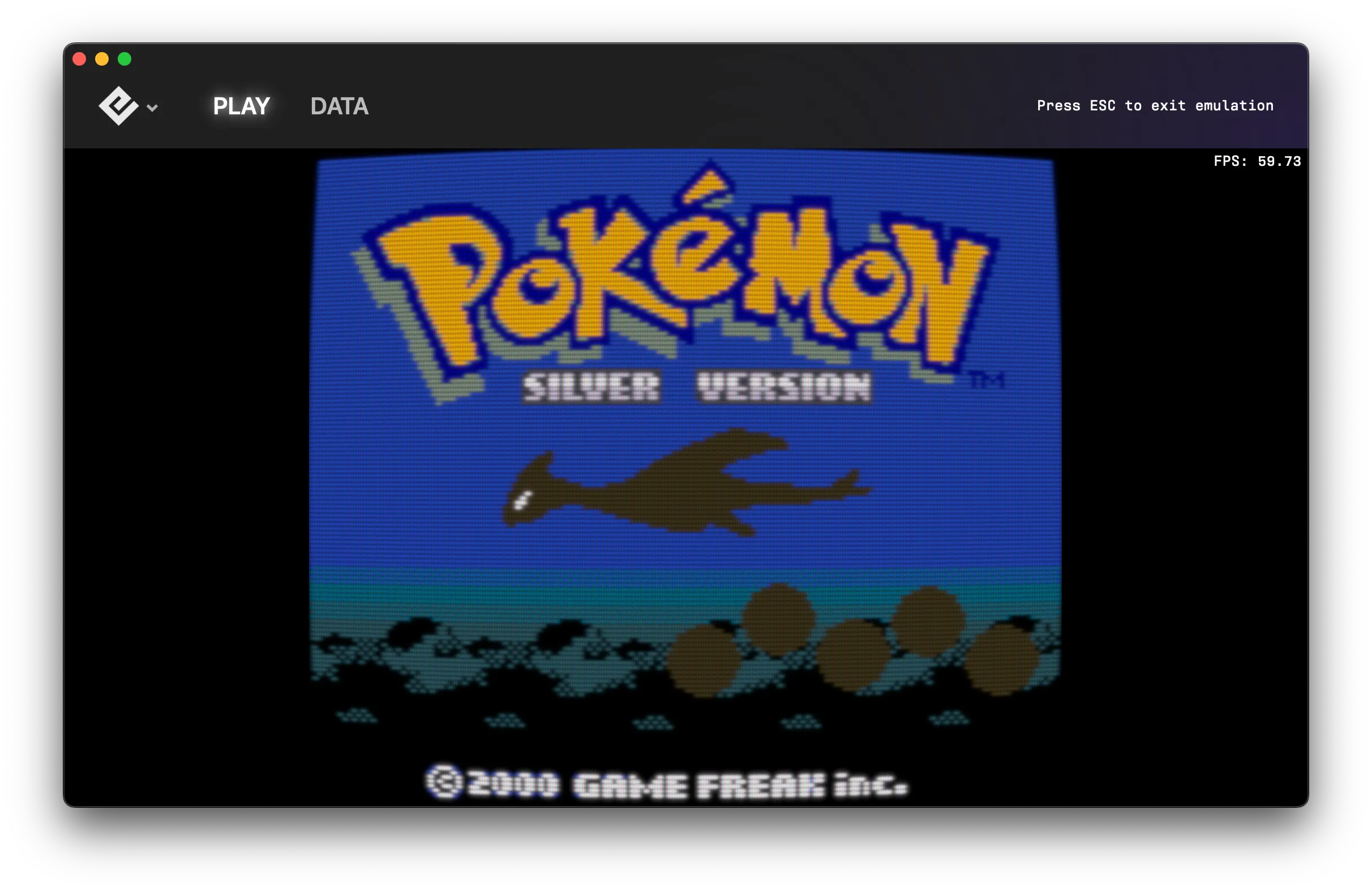
Install custom shaders for CRT effects, scanlines, and more.
2 min read
Shaders add visual effects to your games, from CRT monitor simulation to artistic filters. Playback supports custom GLSL shaders for a personalized look.
Installing shaders
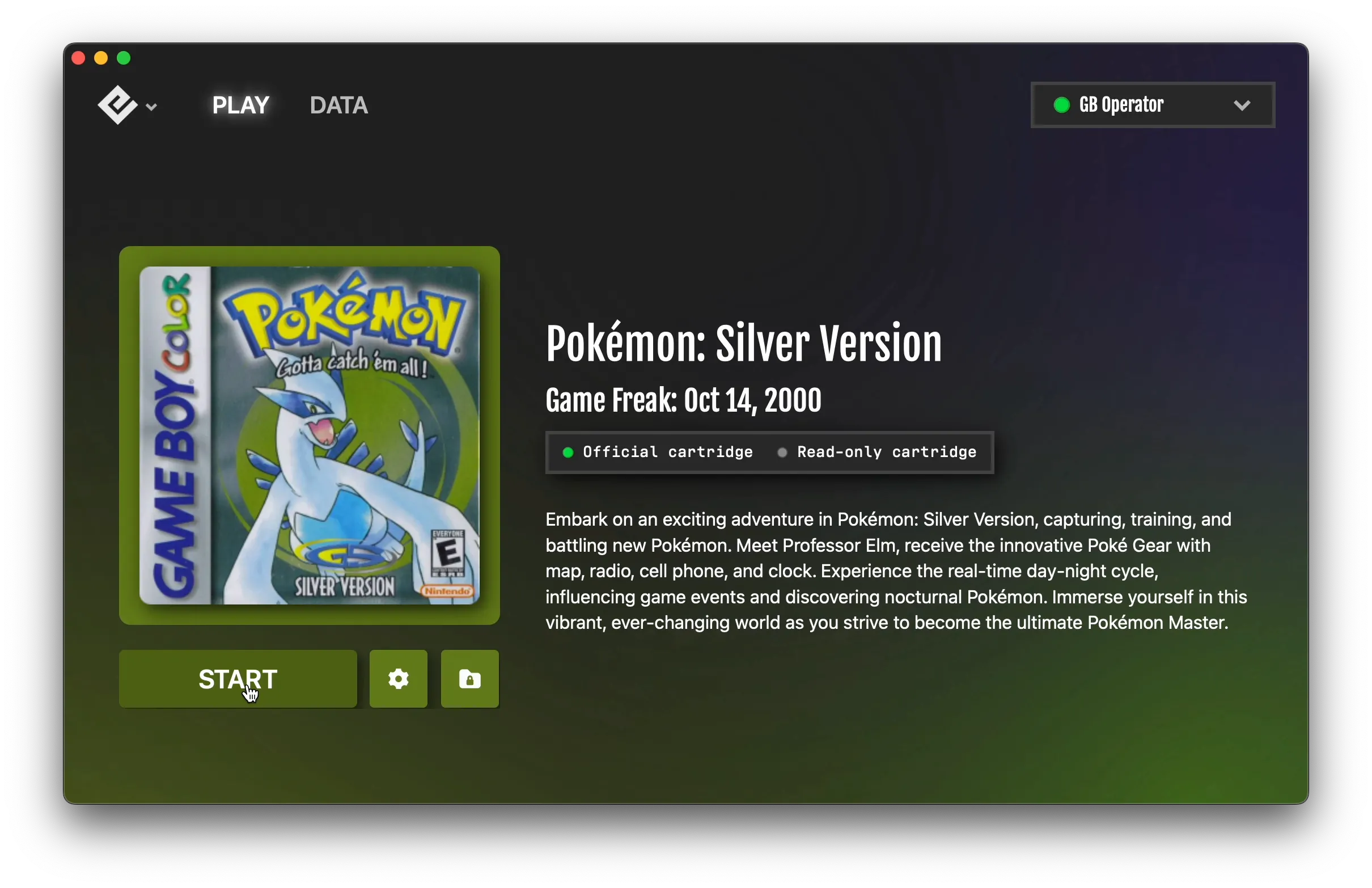
- Start any game in Playback
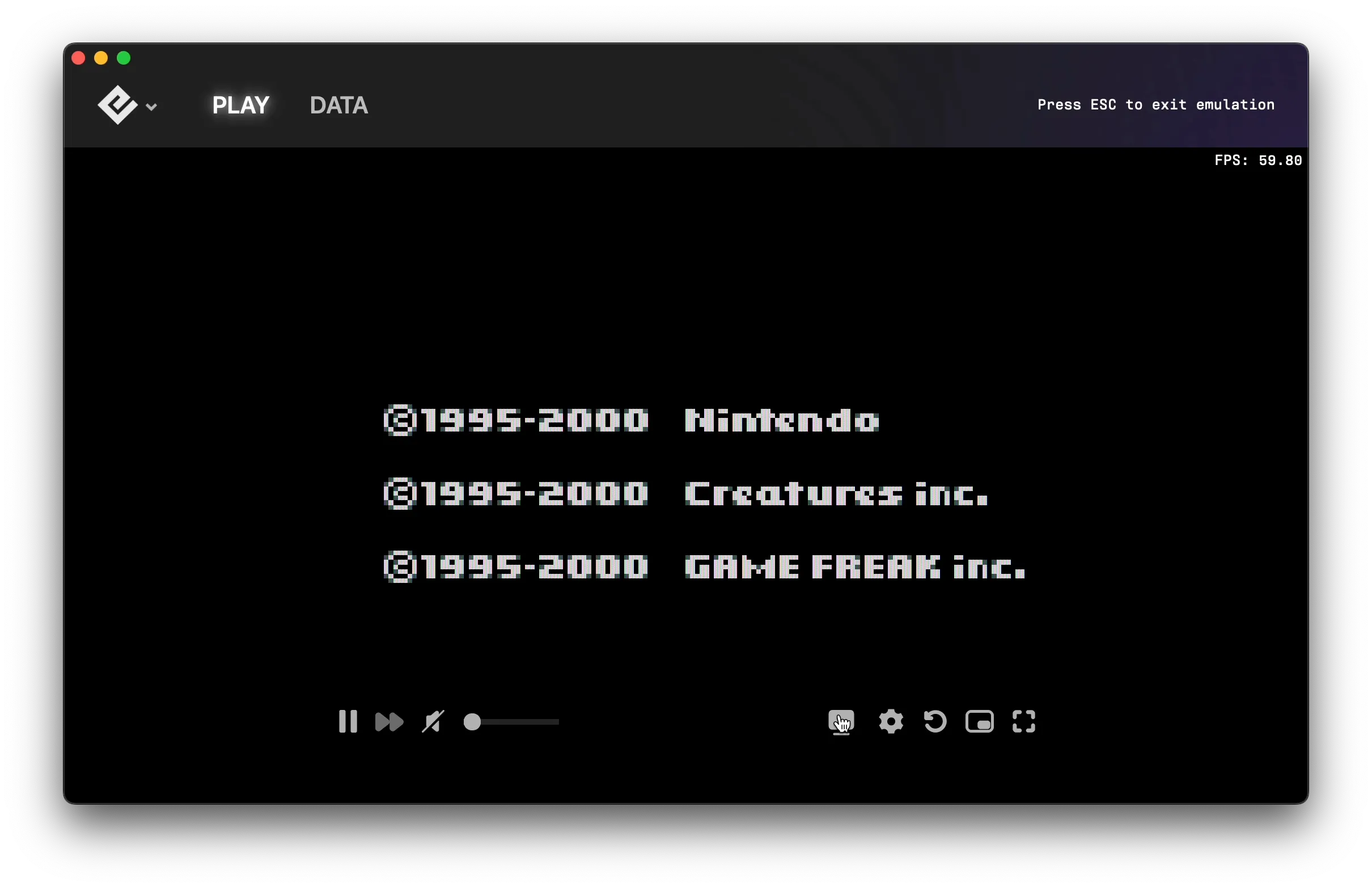
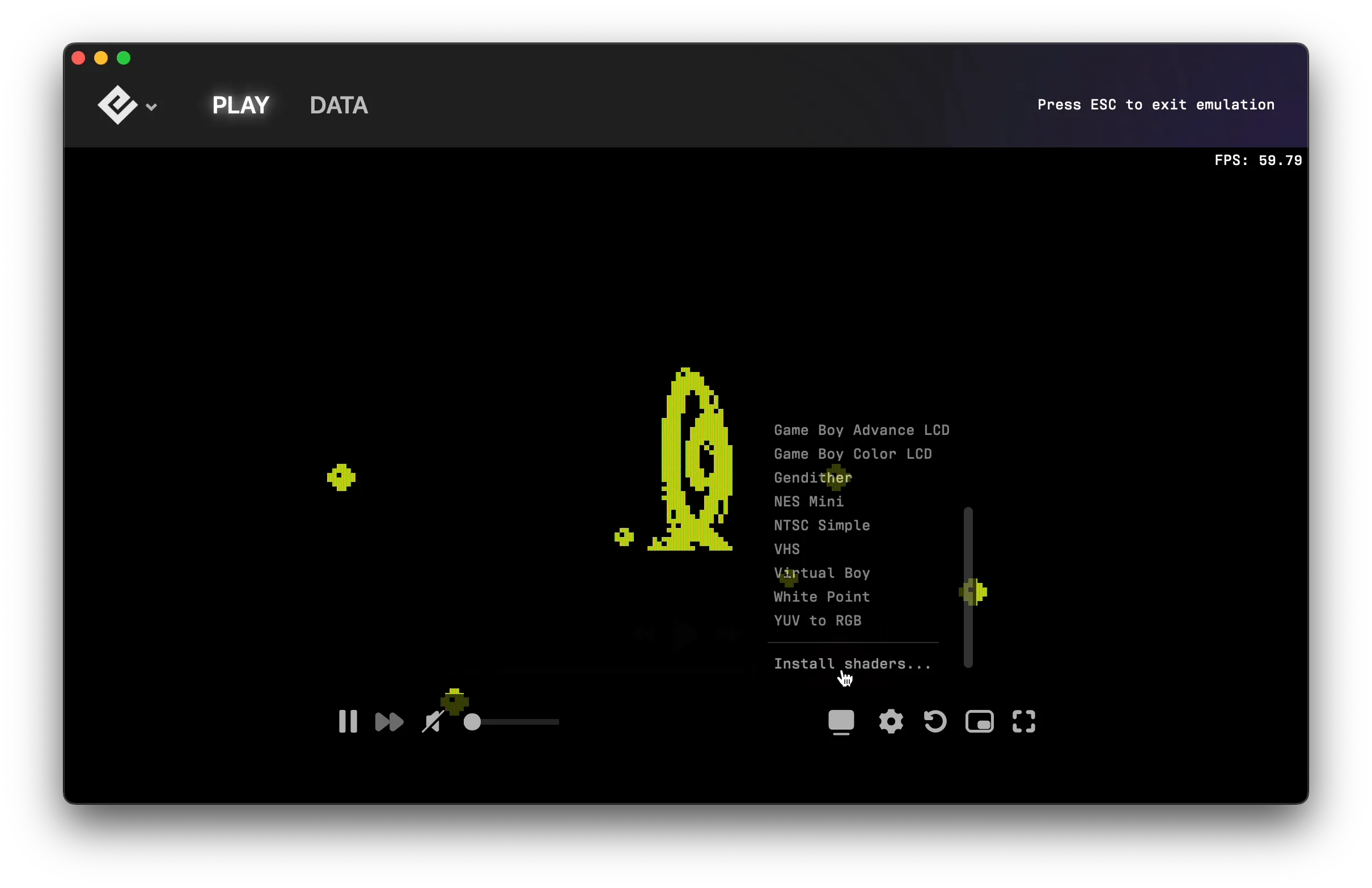
- Click the Shaders button in the emulator menu bar
- Select Install Shaders…
- This opens the Shaders folder on your computer
- Drag your shader files into this folder
Supported formats
Playback supports these shader formats:
.glslp— Shader presets (recommended).glsl— Individual shader files
Using shaders
After installing shaders:
- Click the Shaders button in the emulator menu
- Select your installed shader from the list
- The effect applies immediately
To disable shaders, select Stock from the Shaders menu.
Finding shaders
You can find shader collections online from the retro gaming community. Popular shader types include:
- CRT shaders — Simulate the look of old CRT monitors with scanlines, curvature, and phosphor glow
- Scanline filters — Add horizontal lines for a classic arcade look
- LCD shaders — Mimic the pixel grid of handheld screens
- Smoothing filters — Reduce pixelation with various algorithms
Creating your own
If you’re familiar with GLSL, you can create custom shaders. Shaders must be compatible with the libretro shader format used by Playback.
Tips
- Some shaders are performance-intensive — try different ones to find the right balance
- CRT shaders look best at higher resolutions
- Combine shaders with integer scaling for the crispest pixels
See also
- Video and Audio Settings — Built-in visual filters
- Borders and Palettes — Super Game Boy® features
- Data Folder Locations — Where shader files are stored
Still need help? Contact our support team

