Everdrive Save Transfers
How to transfer saves from an Everdrive to your original cartridge.
2 min read
If you’ve been playing on an Everdrive and want to continue your progress on an original cartridge, you can transfer your save using the GB Operator.
Understanding save formats
Everdrive devices store saves in a different location and sometimes with a different extension than standard saves:
- Everdrive saves typically use the
.srmextension - Everdrive saves are stored in a
SAVEfolder on the SD card - Playback uses the standard
.savformat
Despite the different extension, the save data is usually compatible.
Transfer steps
Step 1: Locate the Everdrive save
- Remove the SD card from your Everdrive
- Insert it into your computer
- Navigate to the save folder:
- For GB/GBC Everdrive:
GBCSYS/SAVE/ - Location may vary by Everdrive model
- For GB/GBC Everdrive:
Step 2: Upload to your cartridge
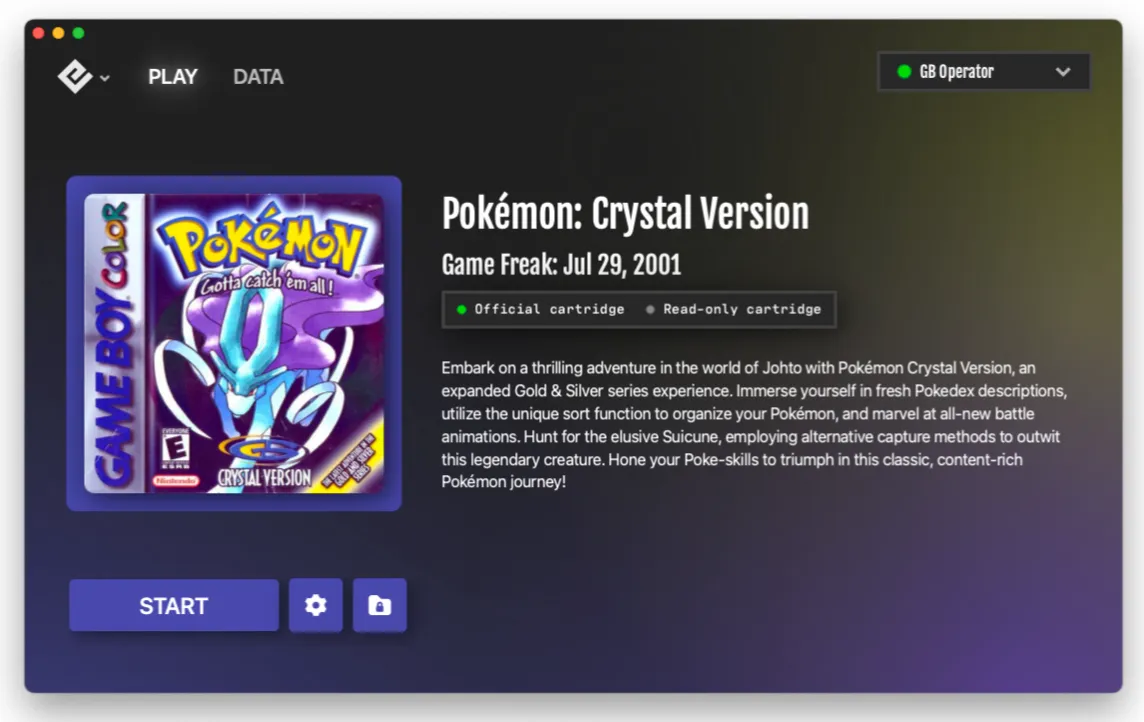
- Insert your original cartridge into the GB Operator
- Open Playback and go to the Data tab
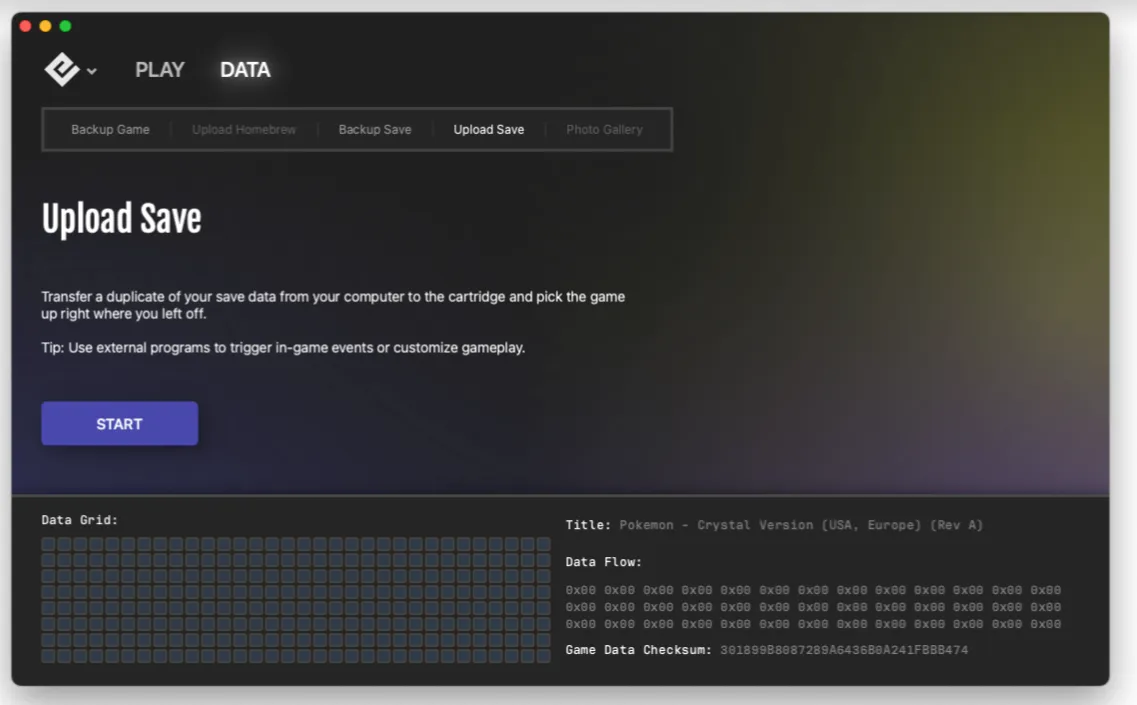
- Click Upload Save
- In the file browser, change the file type filter to All Files
- Navigate to your SD card’s save folder
- Select the
.srmfile matching your game

- Upload it to the cartridge

Step 3: Verify the transfer
- Start the game in Playback
- Confirm your save data loaded correctly
- Make a backup of the save for safety
Compatibility notes
- Save data should transfer directly for most games
- Some games with special save formats may have issues
- Real-time clock data may not transfer correctly for games with RTC chips
- Always back up your original cartridge save before uploading
Transferring the other direction
To move a save from your original cartridge to Everdrive:
- Back up the save using Playback
- Copy the
.savfile to your Everdrive’s save folder - Rename it to
.srmif needed (or your Everdrive may do this automatically)
Tips
- Keep backups of important saves in multiple locations
- Test the transfer by loading the game before assuming it worked
- Some Everdrive models have specific save folder requirements
See also
- Transferring Saves — Moving saves between devices
- The Data Tab — Backup and upload functions
- Save File Not Loading — Troubleshoot save issues
Still need help? Contact our support team

